


Quick answer: AdCreative.ai connects to four ad platforms: Meta, Google, LinkedIn, and Pinterest. You can attach as many ad accounts as you like, at no extra cost. The thing most write-ups get wrong is what a connection does. Pushing a creative to a connected account uploads it to that platform’s media library; it does not create, schedule, or publish an ad. Google Analytics is not supported at all, despite what the feature lists elsewhere suggest. Connections also live at two separate levels, account and brand, and wiring only one of them is the most common reason a push button does nothing.
Disclosure: Stack99 earns a commission if you buy through links on this page. It costs you nothing extra and never changes our assessment.
The four platforms, and nothing else
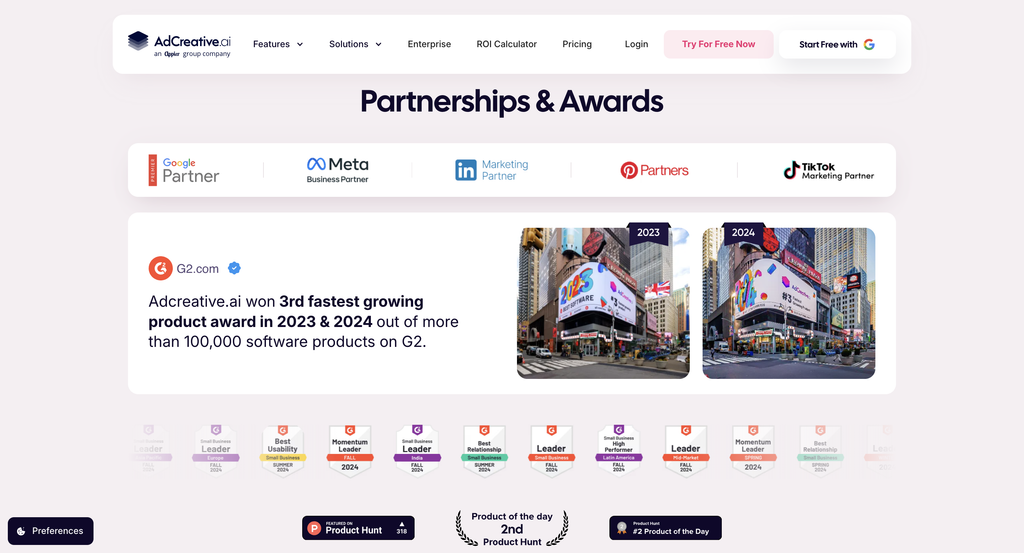
AdCreative.ai’s own help centre answers the scope question directly. The supported destinations are Meta, Google, LinkedIn and Pinterest. On quantity, the vendor is generous: you can connect as many ad accounts as you would like, with no published ceiling and no per-account charge. The same article invites users to suggest platforms they would like added, which tells you the list is the list.
Several things people expect are absent. There is no TikTok connection, no Snapchat, no Amazon Ads, no X. We found no Zapier app, no documented public API, and no webhook surface in the thirteen articles that make up the Account Integrations section of the help centre.
Google Analytics deserves its own line because the question comes up constantly. The help centre has an article titled “How can I integrate Google Analytics”?, and the answer is one sentence: right now this is not possible, but this request is coming soon. That article was last written in October 2024. Treat analytics integration as unavailable rather than imminent.
What a connection actually buys you
The vendor names two benefits, and they are different in kind.
The first is personalised AI insights. Connecting an ad account lets the system analyse your past ad performance and learn what has worked for your brand, so that over time it generates creatives shaped by your own advertising history. Scoring is affected too: the help centre says an unconnected account misses out on better scoring based on past performance.
The second is ad management, described as pushing creatives directly to your ad accounts without the hassle of downloading and uploading. Read that carefully, because the saved step is a file transfer rather than a workflow.
You can skip connections entirely. AdCreative.ai works without them, and the help centre says so plainly. What you lose is the push shortcut and the historical learning. Generation, scoring against general benchmarks, and downloading files all still work. For an agency producing creative that someone else uploads, running unconnected is a legitimate choice rather than a degraded one.
Push is not publish
This is the single most important sentence in the integration documentation, and the vendor states it without hedging: AdCreative.ai does not automatically publish your ads. When you push to a social platform, the creative is added to your media library. You then use it as an ad image when you create a new ad.
So the integration moves a file across an authenticated boundary. Everything downstream stays manual. Campaign structure, ad set, targeting, budget, bidding, copy, landing page, and the ad object itself are all built by you in Ads Manager or Google Ads afterwards.
Compare that to what you would otherwise do: download a PNG, open the ad platform, upload the PNG. The connection removes two steps from a process that has roughly fifteen. Useful at volume, particularly when you are pushing twenty variants for a test, and close to irrelevant if you make three creatives a month.
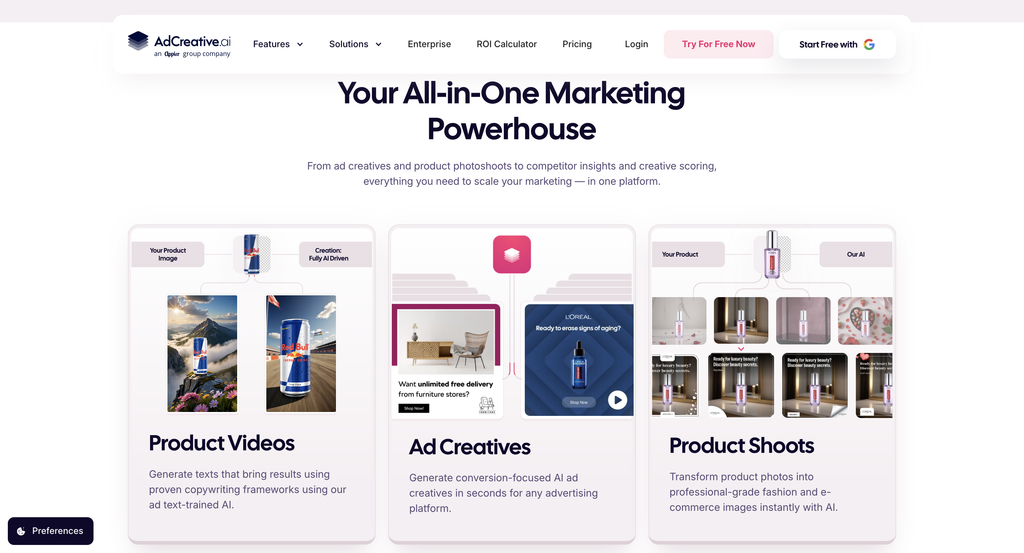
Budget expectations accordingly. A tool that generates assets and hands them to your media library is doing creative production, not campaign automation.
Two places to connect, and you probably need both
Connections exist at two levels inside the application, and the documentation treats them as separate operations with separate paths. Missing the second one is the usual reason a setup looks complete and behaves as though nothing is linked.
Account level. Click the button carrying your initials in the top right corner, then Integrations. From there, you can link, unlink, and change your associated ad accounts. Adding one is a button marked Add Account Connect, which opens a login pop-up from the platform you chose. Logging in completes the link. Documentation also calls this surface platform connections.
Brand level. Go to the Brands page, click the three dots on the brand you want, choose Edit, then Advanced Setup. Select Ad Account Connect, pick the platforms, choose the account you want attached to that brand, and click Save and Continue. The documentation adds a verification step that is easy to skip: confirm you can see Account(s) Selected next to the platform, then click Update.
The vendor flags one gotcha here explicitly. Make sure you select the correct account ID, verifiable in your ad account profile. Anyone managing several accounts under one login will recognise why that warning exists.
The brand-level step is the one that governs pushing. Its own article opens by telling you to connect ad accounts to your brand first, and links to the brand procedure before describing how to push anything.
Your plan caps how many brands you can wire
Because connections attach to brands, the brand allowance on your plan quietly limits your integration setup. Ad accounts are unlimited; brands are not.
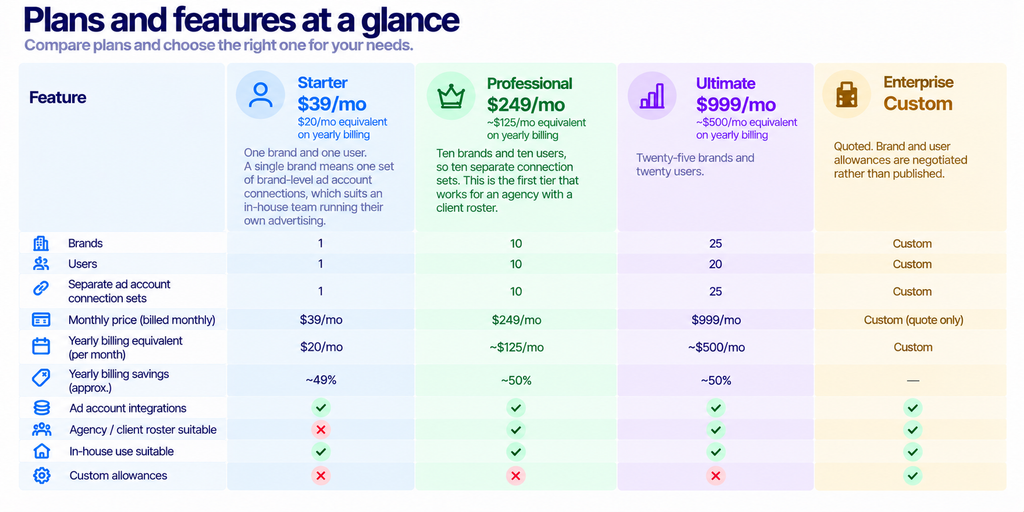
Prices above were verified on 8 October 2026 and the pricing section defaults to the yearly view, so the first figures the page shows you are the discounted ones. Our full breakdown of AdCreative.ai pricing works through the toggle behaviour and the credit dropdowns in detail, and what each plan adds covers the feature matrix.
The practical consequence for integrations is simple. An agency on Starter cannot keep client connections separate, because one brand holds one set. Plan the brand count around your clients before you price the credits.
Pushing a creative, step by step
Once the brand is wired, the push itself is short. Open the Projects page and the project you want. Press the checkbox icon beside the creative. Click Download at the top right, then choose the platform you want it sent to.
Note the control is labelled Download rather than Push or Publish. Choosing a platform from that menu is what sends the file, a small piece of interface design that sends people hunting for a separate button.
Finding the creative on the other side
Pushed assets do not announce themselves. Documentation covers where to look.
On Meta, build a campaign and ad set in Ads Manager, give the ad a descriptive name, select the Facebook Page and Instagram account that represent your business, then pick an ad format from single image or video, carousel or collection. At the media step, choose from previously uploaded images rather than uploading new media. Your pushed creative sits under Account Images. One requirement catches people out: every ad must have an associated Facebook Page.
On Google, the pattern is the same. Reach the ad stage of a new campaign and your pushed image appears in the Images section.
What happens next is governed by the ad platform, not by AdCreative.ai. Google’s own documentation for responsive display ads describes supplying multiple assets and letting the system assemble combinations, and its uploaded display ad specifications set the formats and sizes that will actually run. Generating a creative that the destination platform rejects is a real failure mode, and no connection protects you from it. Check the specs against your output sizes once, early.
When Meta will not cooperate
The most common connection failure has a documented cause. If your existing Facebook ad account does not appear, the help centre says you need Full Control over that ad account.
Check it this way: open Ad Accounts under the Accounts section, select the ad account, click the person whose access you want to edit, and enable Manage Ad Account under Full Control. A second instruction is easy to miss: check your Facebook Pixel permissions the same way.
Partial access is the usual culprit. Someone granted advertiser or analyst rights, which is enough to run ads by hand and not enough for a third-party tool to enumerate the account. Fix the permission before you debug anything else.
Revoking access, and the name to look for
Disconnecting from the Google side produces a genuine surprise. Instructions say to open your Google Account permissions, locate ADYOUNEED in the list, and remove it.
ADYOUNEED, not AdCreative.ai. The OAuth application registered against your Google account carries a different product name, so anyone auditing third-party access and scanning for the vendor they recognise will scroll straight past it. That is worth recording somewhere your security reviewer will find it.
The same article notes that after removing the permission, you reconnect from inside AdCreative.ai, which is the expected behaviour if you are rotating access rather than leaving.
For context on who you are granting access to: AdCreative.ai was founded in 2021, is based in Paris, and was acquired by Appier in a deal the acquirer valued at $38.7m in total, including a $27.3m base. Ownership matters for a vendor holding tokens to your ad accounts.
A realistic setup order
Putting the documentation in sequence gives you this:
- Confirm you hold Full Control on the Meta ad account and check Pixel permissions before touching AdCreative.ai at all.
- Connect at the account level through the initials menu and Integrations, using Add Account Connect for each platform.
- Create the brand, or open the existing one from the Brands page.
- Open the brand’s Edit screen, then Advanced Setup, then Ad Account Connect.
- Choose the platform, select the correct account ID, click Save and Continue.
- Verify that Account(s) Selected appears beside the platform, then click Update. Skipping this leaves the brand unlinked.
- Generate, then select a creative in Projects and use Download to send it to the platform.
- Open Ads Manager or Google Ads and build the actual ad around the asset in your media library.
Steps one and six are where setups fail. Both are verification rather than configuration, which is exactly why they get skipped.
Who this integration suits
Worth connecting if: you advertise on at least one of Meta, Google, LinkedIn or Pinterest, you have enough ad history for the learning to mean something, and you produce creatives in batches. The historical-performance benefit compounds with the amount of data you hand over.
Skip it if: you advertise mainly on TikTok, Snapchat, Amazon or X, none of which connect. Skip it too when a separate team uploads your assets, because the push saves them nothing.
Reconsider the plan if: you are an agency on Starter. One brand holds one connection set, so client separation starts at Professional.
Look elsewhere if: you want campaign automation. Nothing here creates, launches or optimises an ad. Our review of what a credit actually buys covers the generation side, and the alternatives roundup is the place to start if the four-platform list rules the product out.
What we could not verify
AdCreative.ai publishes no integrations page on its marketing site. We checked for one at several predictable addresses and each returned a 404, and the sitemap carries no integration or partner pages. Everything above comes from the Account Integrations section of the help centre, which is where the vendor actually documents this.
Those help pages render blank to our crawler, so we could not screenshot them; the text was read from the server response instead. Images on this page come from the vendor’s marketing site, captured earlier this month.
We found no published rate limits, no API reference, no list of OAuth scopes requested at connection time and no statement of what happens to pushed assets if you cancel. None of those is documented publicly, so none is asserted here. The LinkedIn and Pinterest connections are named by the vendor but have no setup articles of their own, so the procedures above are documented for Meta and Google only.
Frequently asked questions
Which platforms does AdCreative.ai connect to?
Meta, Google, LinkedIn, and Pinterest. Documentation states you may connect as many ad accounts as you like across those four.
Does AdCreative.ai publish ads for me?
No. The vendor states it does not automatically publish ads. A pushed creative lands in your platform media library and you build the ad around it yourself.
Can I connect Google Analytics?
Not currently. The help centre article on the subject says it is not possible and describes the request as coming soon, and that article dates from October 2024.
Why can’t AdCreative.ai see my Facebook ad account?
Almost always a permission problem. You need Full Control over the ad account, with Manage Ad Account enabled for your user, and the vendor also asks you to check Facebook Pixel permissions.
Where does a pushed creative appear?
Under Account Images on Meta, reachable at the media step when building an ad. On Google it appears in the Images section once you reach the ad stage of a new campaign.
Do I have to connect an ad account to use the product?
No. Generation works unconnected. You give up the direct push and the personalisation that comes from the AI learning your past ad performance.
How do I revoke Google access?
Open your Google Account permissions and remove the entry called ADYOUNEED. The OAuth application is registered under that name rather than AdCreative.ai.
Is there a Zapier app or a public API?
Neither appears anywhere in the vendor’s integration documentation. The thirteen articles covering integrations describe ad account connections only.
Sources
- Account Integrations, AdCreative.ai help centre, all thirteen articles read 29 October 2026.
- Create a responsive display ad, Google Ads Help, on supplying assets for system-assembled ads.
- Uploaded display ads specifications, Google Ads Help, for the formats a pushed asset must satisfy.
- Appier acquires AdCreative.ai, for ownership, deal value, and founding details.
Wire the brand level as well as the account level, confirm Account(s) Selected, and expect a file in your media library rather than a live ad. Start a trial of AdCreative.ai if that is the workflow you wanted.