


- What WebCatalog actually does
- Setting up your first app and profile
- Spaces, and when you need more than one
- What the free plan limits really mean
In this guide
- What WebCatalog Actually Does
- Before You Install: What To Decide
- Step 1: Install And First Launch
- Step 2: Add Your First App
- Step 3: Profiles For Multiple Accounts
- Step 4: Spaces To Separate Contexts
- Step 5: The Home Screen And Widgets
- What The Free Plan Limits Mean
- Pricing Context
- Beginner Mistakes To Avoid
- Verdict
- FAQ
What WebCatalog Actually Does
WebCatalog turns a website into a desktop application. You point it at Gmail, Slack, Notion, ChatGPT or anything else that lives in a browser tab, and it gives you a standalone app with its own icon, its own window and its own session.
Disclosure: Stack99 earns a commission if you buy through links on this page. It costs you nothing extra and never changes our assessment.
The reason to care is the second half of what it does: each of those apps can hold several signed-in accounts at once, kept separate. If you have a work Gmail and a personal Gmail, or three client Slack workspaces, the browser makes you choose between constant account switching and a sprawl of profiles. WebCatalog makes them parallel instead of sequential.
On top of that it adds organisation — spaces that group apps by context, and a home screen with widgets for to-dos, weather, a world clock and similar. It runs on macOS, Windows and Linux, with browser extensions for Chrome, Edge, Firefox, Brave and Vivaldi, plus a web version.
What it is not: a browser replacement, a password manager, or a way to use software you do not already have accounts for. It is a container and an organiser. If your problem is “too many tabs and too many logins,” it addresses that directly. If your problem is something else, it probably will not help.

Before You Install: What To Decide
Two decisions before you install, because changing them later means redoing setup.
Which sites genuinely deserve to be apps
The honest answer is fewer than you think. A site earns an app if you keep it open all day, switch to it by muscle memory, or need more than one account signed in. Gmail, Slack and a project tracker usually qualify. A site you visit twice a week does not — it belongs in a bookmark. The free plan allows two desktop apps, which is a useful forcing function: pick the two that would save you the most switching.
How you want contexts separated
There are two separation mechanisms and beginners routinely confuse them. Profiles separate accounts within one app — two Gmail logins, three Slack workspaces. Spaces separate groups of apps — everything for work in one, everything personal in another. You will likely want both, but decide which problem you have first. If you only have one account per service, you need spaces and not profiles.
Step 1: Install And First Launch
Download from the WebCatalog site — macOS and Windows builds are offered on the homepage, with Linux also available — and install as you would any desktop application. You will be asked to create an account, which is what drives cloud sync so your setup follows you to a second machine.
Worth knowing at this point: a number of features are desktop-app-only. The pricing page marks desktop apps, profiles, spaces, theme colours, the ads and tracker blocker and app lock as available in the desktop app specifically. If you install only the browser extension, you are not seeing the product most of this guide describes.
First launch drops you on the home screen rather than an empty window, which is the right default — it is where you will return between tasks.
Step 2: Add Your First App
The core loop. Search the catalogue for the service you want, or paste a URL for anything not listed, and WebCatalog creates an app for it.
- Start with the one you switch to most. Whatever you alt-tab to without thinking is the app that will justify the install on day one.
- Check it behaves. Open it, sign in, and use it normally for an hour. Most web apps work exactly as they do in a browser; the ones that do not are usually those depending on specific browser extensions or unusual file handling. Find that out on day one, not after you have moved your whole workflow.
- Then add the second. The free plan stops at two, which is deliberate on their part and useful on yours — two apps is enough to tell whether the model fits.
The thing to resist is adding fifteen apps immediately. People do, then find they have recreated their tab sprawl in a new place with extra steps. Add apps when switching to a site in a browser becomes annoying, not in anticipation.
Step 3: Profiles For Multiple Accounts
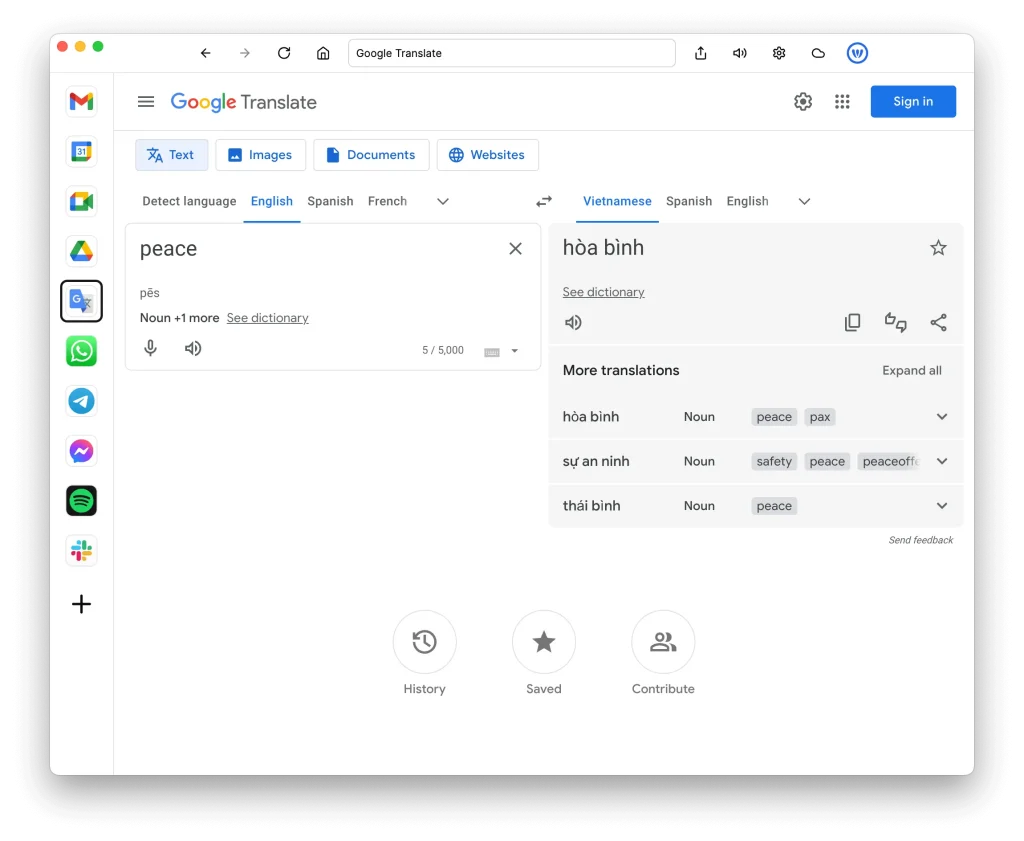
Profiles are the feature most people actually came for. A profile is a separate signed-in session inside one app. Two Gmail profiles means two accounts, both live, switched from within the app rather than through Google’s account switcher.
How to set them up sensibly:
- Name them by role, not by address. “Work” and “Personal” are readable at a glance. A truncated email address is not.
- One profile per account, not per task. Profiles are sessions. Using them to separate projects within one account creates confusion with no benefit.
- Watch the free limit. Basic allows two profiles. If you have three client Slack workspaces, that alone pushes you to a paid plan — which is worth knowing before you build a setup you cannot complete.
This is where the product earns its keep for consultants, agencies and anyone with a side business. If you have exactly one account per service, you can skip profiles entirely.
Step 4: Spaces To Separate Contexts
A space is a group of apps you switch between as a unit. Open the Work space and you get the work apps; switch to Personal and they are replaced.
The free plan includes one space, which is to say it includes none in any practical sense — one space is just your app list. Spaces become meaningful at two or more, which is a paid feature. That is a fair trade to understand up front rather than discover.
If you do move to a paid plan, keep the number of spaces small. Two or three that map to real contexts — work, personal, a specific client — stay useful. Eight spaces become another thing to organise. The point of a space is to make everything irrelevant to the current context disappear; too many and you are back to searching.

Step 5: The Home Screen And Widgets
WebCatalog gives you a home screen rather than opening into a blank app. It carries your apps, a discover section, your spaces, and a set of widgets — to-dos, live weather, and on paid plans an hourly and daily forecast, a world clock, a currency converter, a calculator and a pomodoro timer.
Treat the widgets as a nice-to-have, not a reason to buy. The to-do list is handy because it is where you already are between tasks; it is not a project management tool and will not replace one. Focus mode and custom or curated wallpapers sit in the same category.
The honest framing: the home screen is the connective tissue that makes a collection of web apps feel like one application. That is a real benefit. It is not what you are paying for.
What The Free Plan Limits Mean
The free Basic plan is genuinely free and needs no card, which makes it the right way to evaluate. What it includes:
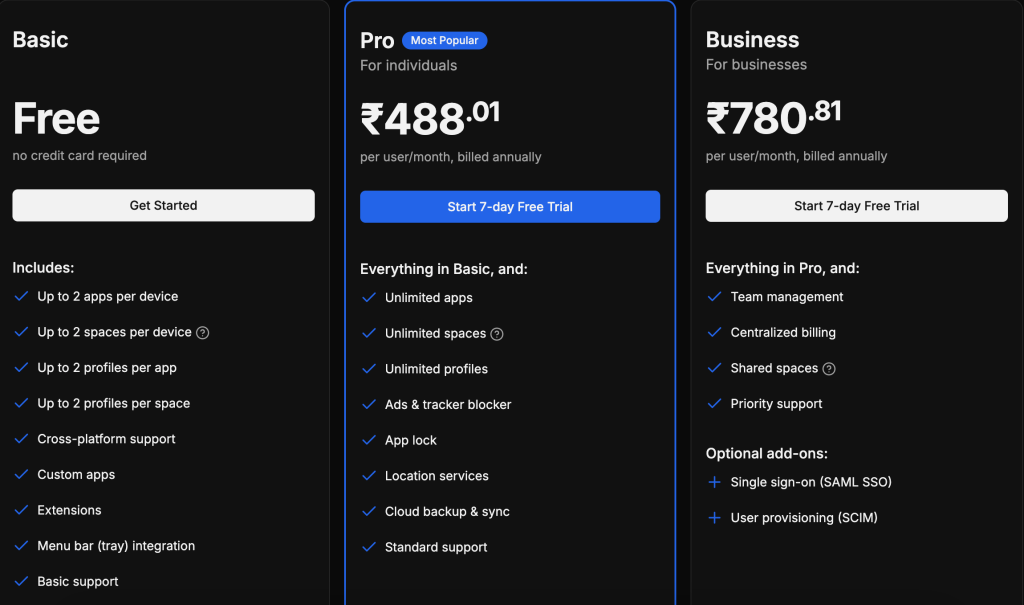
- 2 desktop apps, 2 profiles and 1 space — all desktop-app features.
- Cloud sync, so your setup follows you to another machine.
- Curated wallpapers, to-dos, live weather conditions and focus mode.
Those three numbers decide everything. Two apps and two profiles is enough to run work and personal email in one app, or two client workspaces in another — but not both. The moment you need a third account anywhere, or a second space, you are on a paid plan. There is no middle tier.
That is a sharper limit than most freemium products, and it is worth being clear-eyed about: the free plan is a trial with no time limit rather than a usable long-term tier for anyone with a real multi-account problem. For the single-account user who just wants two sites as desktop apps, it is sufficient indefinitely.
Pricing Context :
Verified on the vendor’s own pricing page on 2 October 2026, with both billing toggles checked. The page opens on the yearly toggle, so the first price you see is the annual rate presented per month — worth noting before you budget.
| Plan | Price | What you get |
|---|---|---|
| Basic | Free | 2 desktop apps, 2 profiles, 1 space, cloud sync, curated wallpapers, to-dos, live weather, focus mode. No card required. |
| Pro | $6/mo | Per user, billed monthly; $5 per user/month billed annually. Unlimited apps, profiles and spaces, ad-free, theme colours, ads and tracker blocker, app lock, Pages, custom wallpapers, extra widgets, priority support. 7-day free trial. |
| Business | $10/mo | Per user, billed monthly; $8 per user/month billed annually. Everything in Pro plus shared spaces, shared pages, team management, centralised billing, activity log and SAML SSO. |
Annual billing saves 20% on both paid tiers. Prices exclude local taxes, and the page can be switched between USD, EUR and JPY. The 7-day free trial applies to the paid plans, so you can test unlimited apps and spaces before committing.
For most individuals the decision is simply Basic or Pro, and it is settled by the number of accounts you need signed in simultaneously. Business is a team purchase — shared spaces, SSO and centralised billing are the reasons to choose it, not the extra widgets.
Beginner Mistakes To Avoid
- Adding every site you use. Tab sprawl relocated is still tab sprawl. Add an app when browser switching becomes a friction you notice.
- Confusing profiles with spaces. Profiles separate accounts inside one app; spaces separate groups of apps. Using spaces to manage multiple accounts, or profiles to manage projects, produces a setup that fights you.
- Installing only the browser extension. Desktop apps, profiles, spaces, app lock and the tracker blocker are marked as desktop-app features. The extension alone is a different, much smaller product.
- Building a setup the free plan cannot finish. Two apps, two profiles, one space. Map your intended setup against those numbers before you start, so the limit is a decision rather than an interruption.
- Assuming every web app behaves. Most do. The exceptions usually depend on browser extensions or unusual file handling. Test the one you rely on most in the first hour.
- Paying annually on day one. There is a 7-day trial on the paid plans and a 20% annual discount that will still be there next month. Run monthly until you know how many profiles you actually use.
Verdict :
WebCatalog solves one problem well: several accounts on the same services, kept signed in and separated, in something that feels like a desktop app rather than a browser. If that describes your day — a consultant across client workspaces, anyone running work and personal lives on the same services — it is a small, cheap tool that removes a daily friction.
If you have one account per service and a reasonable number of tabs, it is a pleasant organiser you do not need. Be honest about which you are before you pay.
The free Basic plan is the right starting point in either case: two apps, two profiles and one space, no card. That is enough to know within a week. Our WebCatalog integrations guide covers what it connects to once you are past setup, and you can start on WebCatalog for free.
FAQ :
Is WebCatalog free?
Yes, there is a free Basic plan with no card required. It includes 2 desktop apps, 2 profiles, 1 space, cloud sync, curated wallpapers, to-dos, live weather and focus mode. Paid plans start at $6 per user a month billed monthly, or $5 billed annually.
What is the difference between a profile and a space?
A profile is a separate signed-in account inside one app — two Gmail logins, for example. A space is a group of apps you switch between as a unit, such as work versus personal. Profiles solve multiple accounts; spaces solve context switching.
Does WebCatalog work on Windows and Linux?
Yes. The homepage offers macOS and Windows downloads and lists Linux as also available, along with browser extensions for Chrome, Edge, Firefox, Brave and Vivaldi, plus a web version.
How much does WebCatalog Pro cost?
$6 per user a month billed monthly, or $5 per user a month billed annually — a 20% saving. Prices exclude local taxes. Pro removes the limits on apps, profiles and spaces and adds the tracker blocker, app lock, Pages and the extra widgets. A 7-day free trial is available.
Can I use WebCatalog with my team?
The Business plan at $10 per user a month billed monthly, or $8 billed annually, adds shared spaces, shared pages, team management, centralised billing, an activity log and SAML SSO.
Will every website work as a WebCatalog app?
Most web applications behave exactly as they do in a browser. The exceptions tend to be sites depending on specific browser extensions or unusual file handling. Test the service you rely on most during the first session rather than after migrating your workflow.
Do I need the desktop app or is the extension enough?
The desktop app. Desktop apps, profiles, spaces, theme colours, the ads and tracker blocker and app lock are all marked on the pricing page as desktop-app features. The browser extension is a much smaller part of the product.
Prices and plan contents verified against webcatalog.io/pricing on 2 October 2026, with both the monthly and yearly billing toggles checked. Verify before purchase — prices change.
More on WebCatalog
Hand-picked guides to help you choose the right tool — no fluff.
 FeaturesWebCatalog Top Features 2026The standout features and whether they justify the price.
 IntegrationsWebCatalog Integrations Guide 2026What it connects to and how well each link holds up.
 Use CasesWho Is QuickBooks Best For? Use Cases & Fit (2026)Who gets the most out of it – and who should skip it.
 IntegrationsQuillBot Integrations Guide 2026What it connects to and how well each link holds up.