



Week one with SaneBox is easy. You connect an account, a SaneLater folder appears, and most of the noise leaves your inbox on its own. Week five is where people stall. The sorting is good but not right, the digest has become something you skim past, and you are still paying for feature slots you never turned on. This guide covers the part after setup.
Quick answer
SaneBox never learns from what you read. It learns from where you move mail, which means training is a deliberate act. Snack lets you run 2 of the 11 Power Tools, Lunch 6 per account, Dinner all of them. Pick SaneBlackHole and SaneNoReplies first if you are capped at two. Use Domain and Subject filters, available on every plan, for the rules you already know, and save training for the judgement calls.
Disclosure: Stack99 earns a commission if you buy through links on this page. It costs you nothing extra and never changes our assessment.
What SaneBox is doing to your mailbox
Understanding the mechanism changes how you use the product, so start there.
SaneBox does not sit in the delivery path. It does not receive your mail, forward it, or replace your provider. It connects to your existing mail server, watches for new messages, scores them, and then asks the server to move the ones it judges unimportant into a folder. SaneBox states this plainly in its FAQ: “SaneBox doesn’t send or receive your email.”
That is why it works with any client on any device. The folder it creates is an ordinary server-side mailbox, the same kind your Drafts and Sent folders are. The IMAP protocol defines mailboxes as a server-side construct that any connecting client sees, which is specified in RFC 9051 and in the earlier RFC 3501. Nothing about SaneLater is proprietary. Open your phone, open webmail, open Outlook on a laptop, and the folder is simply there.
Two consequences follow, and both matter later. If SaneBox goes offline, mail still arrives; it just lands in your inbox unsorted until the service returns. And because the sorting is a server-side move rather than a client rule, your training follows you between devices without any sync step.
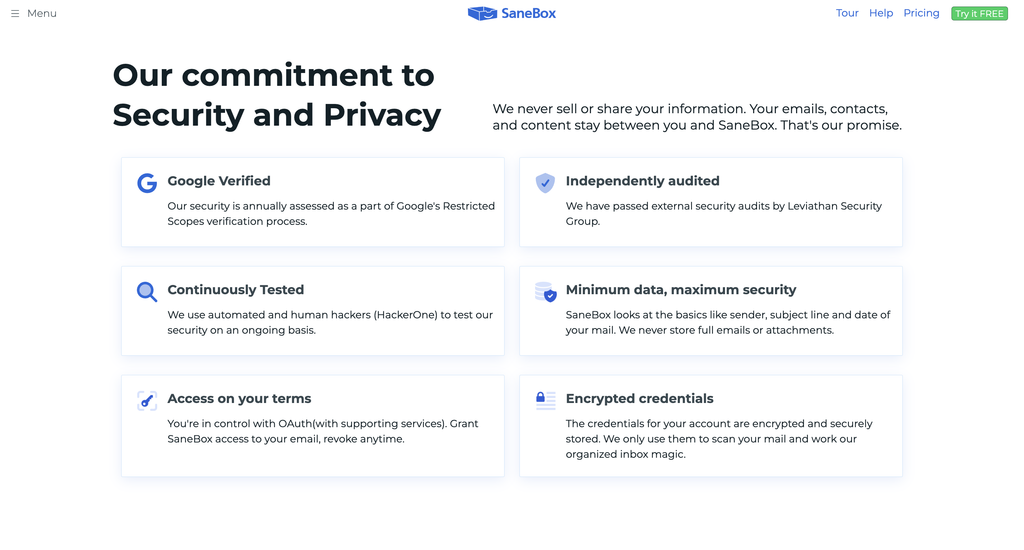
On privacy, read the two SaneBox pages together rather than separately. The FAQ says SaneBox “does its magic without ever reading the body of the email. It only analyzes data in the header.” The security page adds a qualifier: “When optional features retrieve the body of email, they are never stored.” Both statements can hold at once. Importance scoring runs on headers, and a few optional tools need more than headers to do their job. If body access is a hard line for you, that is a question for support before you enable everything.
The allotment is the real product decision
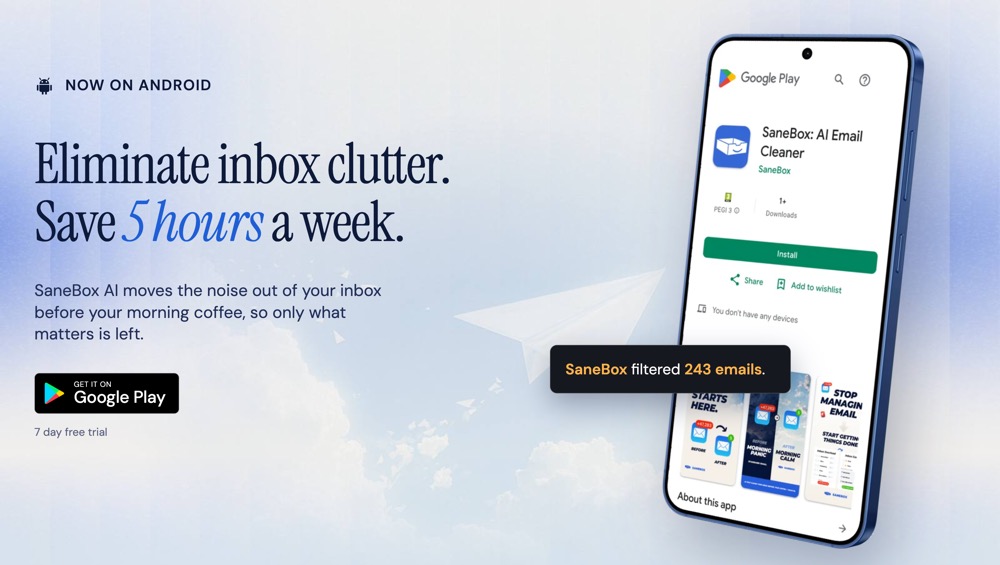
SaneBox splits its catalogue in two. Four things come with every plan: Email Deep Clean, Email Organize, the Daily Digest, and the iOS and Android apps. Subject Filters, Domain Filters and Advanced Filtering also appear on all three tiers. Everything else sits in a group called Power Tools, and your plan decides how many of them you may switch on.
There are eleven Power Tools: SaneLater, SaneNoReplies, SaneDoNotDisturb, SaneBlackHole, SaneNews, SaneScreener, SaneCC, Reminders, Attachments, Custom Snooze and SaneNotSpam. Snack gives you two. Lunch gives you six, and SaneBox confirms in its FAQ that the six are per connected account rather than six in total. Dinner removes the cap.
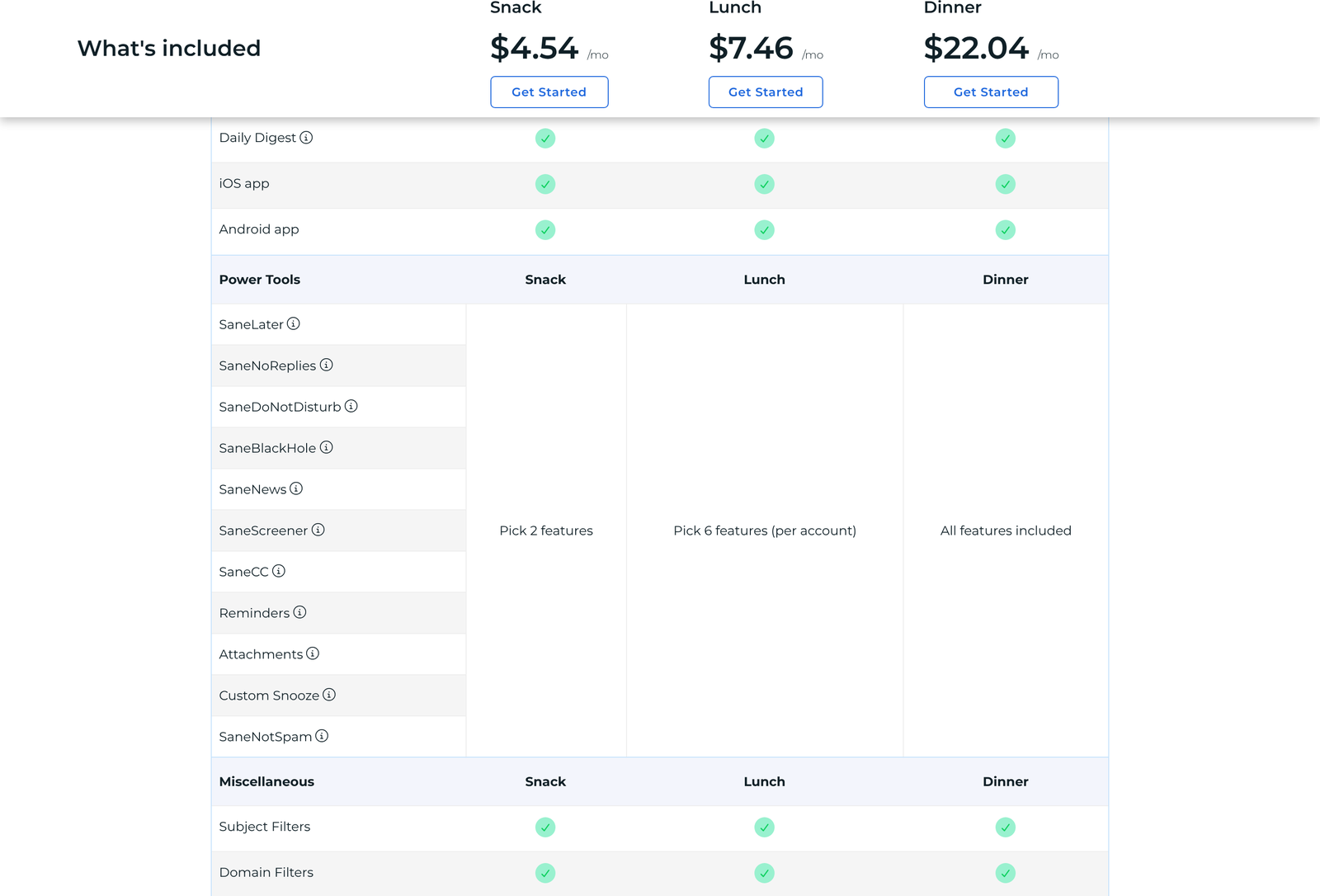
Toggles are not permanent. SaneBox says you can switch features on and off as you like, provided you stay inside your allotment. That makes the cap less painful than it reads, and it suggests a working method: run two for a month, see which one you stopped noticing, swap it out.
What the plans cost, and the toggle trap
SaneBox prices on a three-way billing toggle, and the page does not open on the monthly rate. It opens on Every 2 Years, which is the cheapest figure on the page by a wide margin.
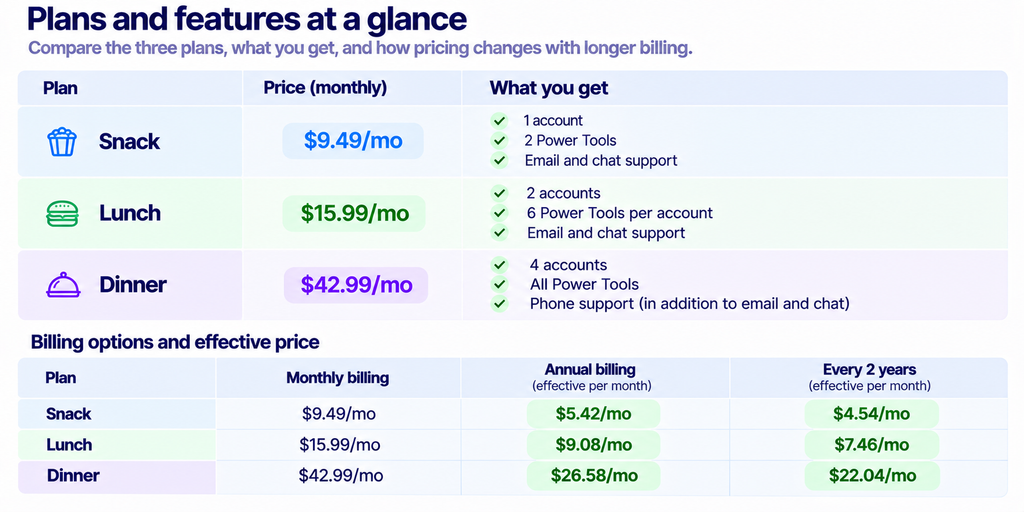
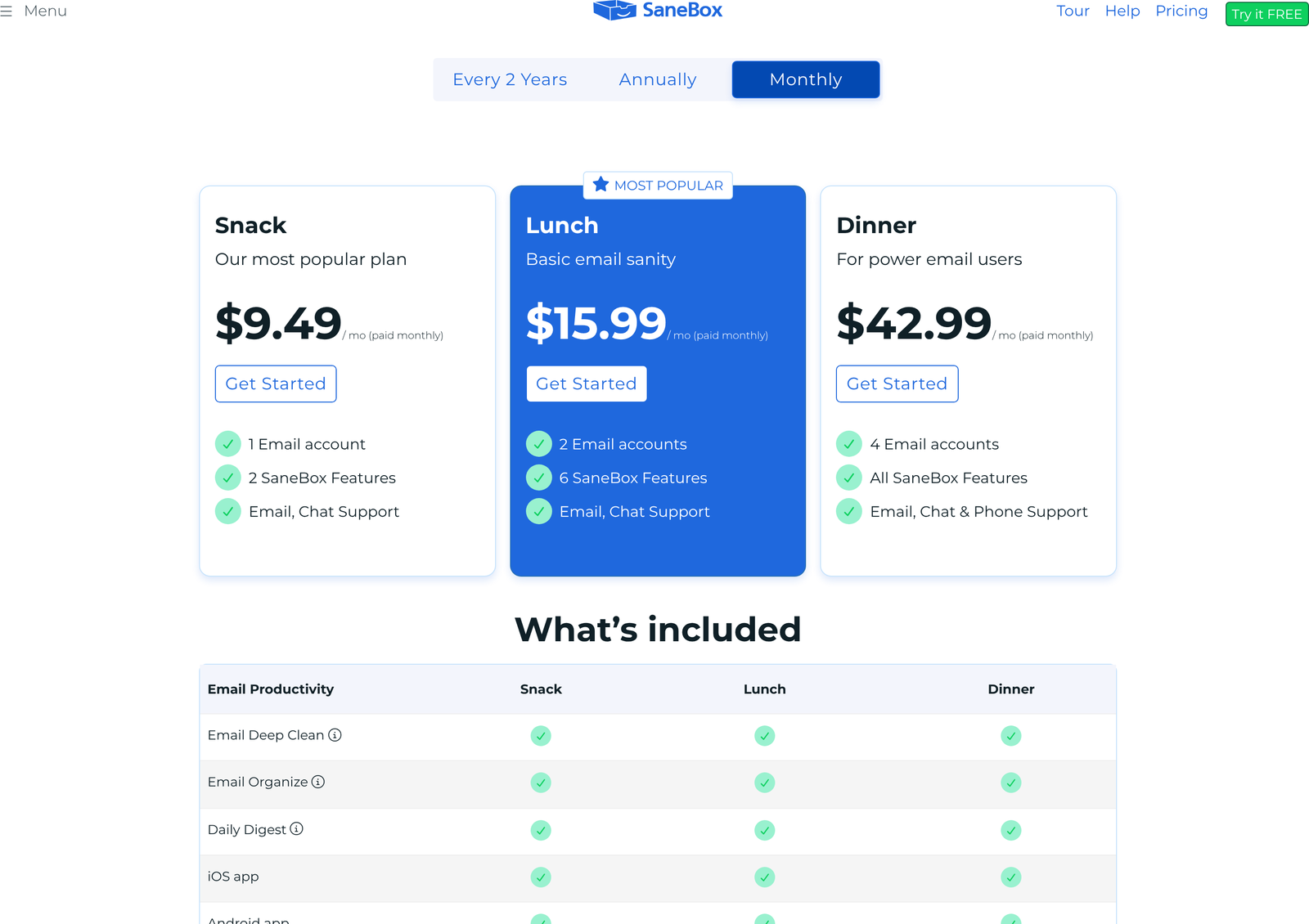
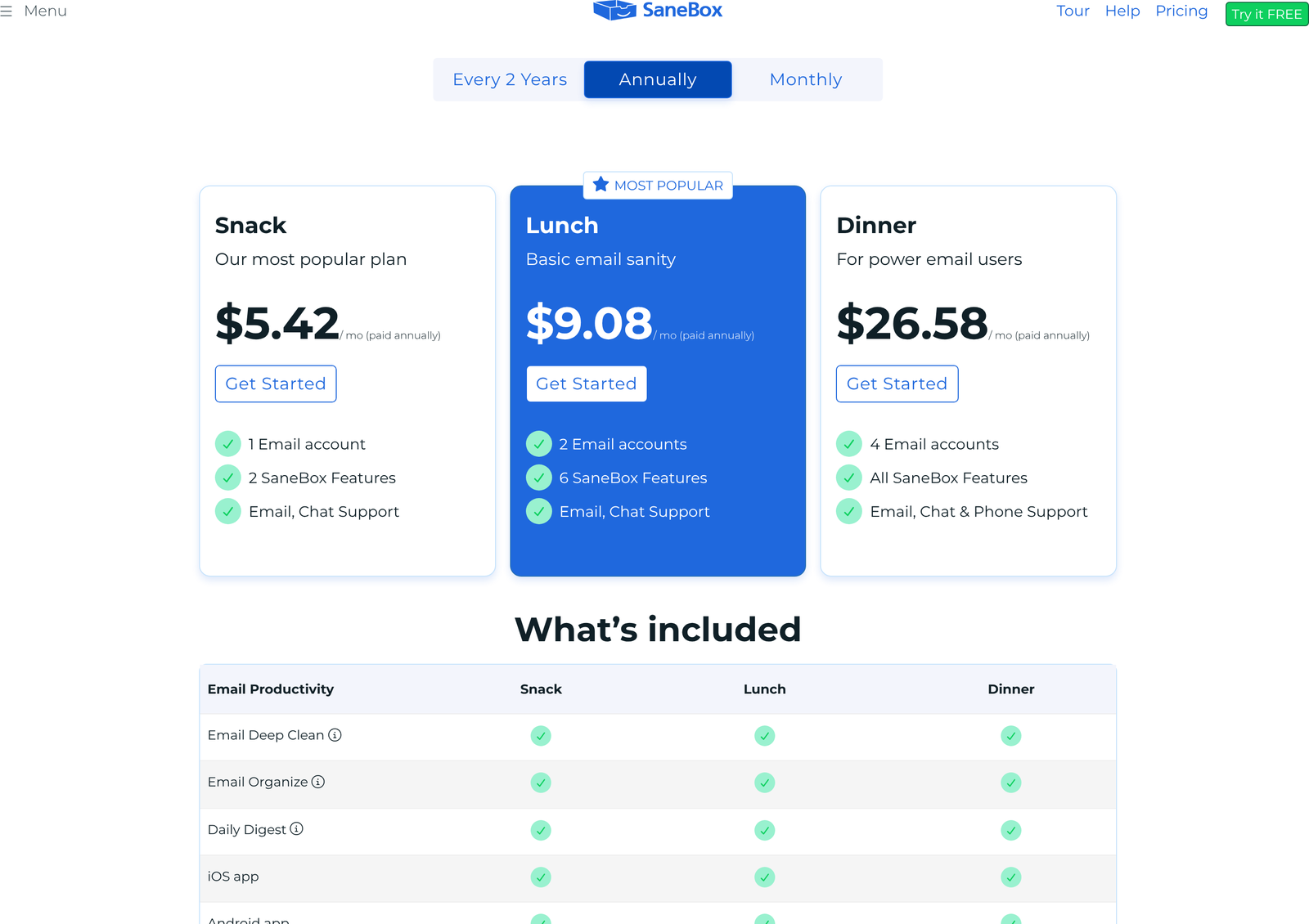
The spread is unusually wide. Lunch costs $15.99 a month if you pay monthly and $7.46 a month if you commit to two years, a 53% difference. Over 24 months that is $383.76 against $179.04, so prepaying saves $204.72 on one plan. Annual lands in between at $9.08, which works out to $108.96 a year.
One arithmetic quirk worth noticing: Snack billed every two years costs $108.96 in total, which is exactly what Lunch costs for a single year. If you are weighing a two-year Snack commitment against one year of Lunch, the money is identical and the question becomes whether you would rather have four extra Power Tools and a second account now, or one account for twice as long. We went through the full billing comparison in our SaneBox review.
Educational, non-profit, and government users get a further 25% off, claimed through support during the trial. The trial runs seven days with every feature unlocked across up to four accounts, which is more generous than the plan you will land on and worth planning around.
Choosing your two, or your six
Rank the eleven by how much work they do without supervision. The ones that act on their own earn a slot. The ones that need you to remember they exist usually do not.
Two slots to spend
SaneBlackHole earns the first one. Drag a message into it, and that sender never reaches you again. It is a one-action unsubscribe that works on senders who ignore unsubscribe links, and it keeps working forever with no further input. The value compounds, which is rare in this category.
SaneNoReplies takes the second. It tracks messages you sent that nobody answered. That is the only tool in the set pointed at outbound mail, and for anyone chasing invoices, candidates, quotes, or approvals, it recovers money rather than time. A forgotten follow-up costs more than a newsletter you did not need to see.
Note that SaneLater itself appears in the Power Tools list. If you turn SaneLater off, the core sorting folder goes with it, so most two-slot users are effectively choosing SaneLater plus one other. Decide which reading of the table applies to your account during the trial, while everything is still switched on.
Six slots to spend
Add SaneNews to pull newsletters out of SaneLater into their own folder, so the digest stops being 90% marketing. Add SaneCC to divert mail where you were copied rather than addressed, which is the single biggest category of mail nobody needs to act on. Add Reminders if you work by forwarding things to yourself with a date in mind. Add SaneDoNotDisturb if you check mail in the evening and wish you did not.
Leave Attachments and Custom Snooze for last unless you have a specific habit they serve. Both are good tools that quietly stop being used.
Training, and the mistake almost everyone makes
Training, as SaneBox documents it, means moving a message to the folder where it belongs. Doing that once is enough: “we won’t make that mistake again.” Trainings can also be edited from the dashboard or from the digest itself on web and iOS.
Here is where people go wrong. They open SaneLater, see something important, read it, answer it, and leave it there. Nothing was corrected. SaneBox scores on behaviour it can observe through the header and on explicit moves, so reading a misfiled message inside SaneLater teaches it nothing useful. Move it to the inbox first, then reply. The extra second is the entire feedback loop.
The second mistake is training in bulk on day two. A hundred corrections made in one sitting, before you have seen how the default behaviour settles, tends to produce a model shaped by your impatience rather than your actual priorities. Correct as you go, a handful a day, for the first fortnight.
Manual Mode suits a slower start. It leaves everything in the inbox until you train it. That inverts the default: instead of correcting false positives, you teach it what to remove. Manual Mode suits people whose inbox is already mostly signal and who cannot tolerate a missed message during the learning period.
Filters beat training for anything you already know
Subject Filters, Domain Filters and Advanced Filtering come with every plan, including Snack. They consume no Power Tool slot. Most advanced users underuse them because training feels like the modern approach and rules feel like 2004.
Use the rule when the answer never changes. Everything from your payroll provider’s domain belongs in the inbox, always, regardless of what the model thinks about a particular message. Anything with your deployment pipeline’s subject prefix belongs in SaneLater, always. Those are domain and subject rules, and they are deterministic in a way a score never is.
Keep training for the grey area: the vendor who sends both contract paperwork and marketing from the same address, the colleague whose mail matters on Tuesdays. A rule there would be wrong half the time.
SaneBlackHole and SaneNotSpam are not the same job
They sound similar and solve opposite problems.
SaneBlackHole is for legitimate mail you never want again. The sender is real, the mail is not spam, and you simply have no interest. Dragging a message there blocks that sender going forward.
SaneNotSpam points the other way. It surfaces mail your provider’s spam filter caught that probably should not have been. Anyone who has lost a client’s reply to a spam folder knows why that is worth a slot. If your work involves cold inbound from addresses you have never corresponded with, such as recruiting, sales, or support, this is a more valuable tool than it looks.
Running both at once uses your entire Snack allotment, which is a reasonable configuration for one kind of user and a waste for another. Decide which failure costs you more: seeing something you did not want, or missing something you did.
Two included tools almost nobody runs twice
Email Deep Clean and Email Organize ship with every plan, Snack included, and neither costs you a Power Tool slot. Most people run Deep Clean once during onboarding, watch a few thousand old messages disappear, and never think about it again.
Treat Deep Clean as a recurring maintenance job instead. A mailbox accumulates dead weight at a steady rate: expired notifications, superseded calendar invites, receipts from subscriptions you cancelled. Running it quarterly keeps the archive searchable, and on providers that meter storage, it keeps you below the ceiling without buying more space.
Email Organize is the one to revisit after your training has settled. Structure imposed in week one reflects guesses about what you would need. Structure imposed in month three reflects what you actually corrected, which is better information. There is no penalty for reorganising twice.

Running several accounts
Snack covers one account, Lunch two, Dinner four. Beyond four, the FAQ points you at support rather than listing a price, and it also mentions personalised plans for people the default tiers do not fit.
The per-account allotment on Lunch is the detail to exploit. Six tools on your work address and a different six on your personal one is twelve configured tools across two accounts, and there is no requirement that the two sets match. Work might run SaneLater, SaneCC, SaneNoReplies, SaneNews, SaneBlackHole and Reminders. Personal might swap SaneCC and SaneNoReplies for SaneDoNotDisturb and Custom Snooze, because nobody is chasing you for an unanswered email at home.
Exchange users on a managed domain should look at the Active Directory route. SaneBox supports Active Directory managed delegation for Microsoft Exchange, and in that configuration login credentials never leave your server. For anyone whose IT team objects to handing over a password, that is the answer to give them. Elsewhere, SaneBox takes either a password or an OAuth token, and the token path is the one to prefer where your provider supports it, since OAuth 2.0 grants scoped access you can revoke without changing your password.
Tuning the digest and the alerts
The Daily Digest summarises SaneLater and any other SaneBox folders you have enabled. That last clause is the one people miss. Turning on SaneNews and SaneCC does not just create folders, it changes what the digest contains, and a digest covering four folders is a different artefact from one covering a single folder.
Stopped reading the digest? The usual cause is that it reports too many folders to scan quickly. Narrow it, or treat the digest as a once-a-week audit rather than a daily read and go to the folders directly.
Leaving cleanly
Cancellation runs through the dashboard, and SaneBox states it will “put everything back the way we found it”. Because the folders are ordinary server-side mailboxes, this is a less fraught exit than most email tools. Before you cancel, move anything you want kept out of SaneLater and the other SaneBox folders, and check your filters for any rule that references a folder about to disappear.
To test any of the above, use the seven-day trial. It opens every feature across four accounts, and it is the only window in which you can compare tools you will later be choosing between.
FAQ
Does reading a message in SaneLater train SaneBox?
Not reliably. SaneBox documents training as moving a message to the folder where it belongs, or editing trainings from the dashboard or digest. Move the message, then read it.
Can I change which Power Tools are active later?
Yes. SaneBox says features can be toggled on and off as long as you stay within your plan’s allotment, so the choice is reversible rather than permanent.
Are the six features on Lunch shared across both accounts?
No. SaneBox’s pricing FAQ states the additional features are per account, so a Lunch plan gives six on each connected account.
What happens to my mail if SaneBox stops working?
Everything is still delivered. Mail arrives in your inbox unsorted until the service comes back, because SaneBox never sits in the delivery path.
Does SaneBox read my emails?
Importance scoring uses header data only, which SaneBox states in its FAQ. Its security page adds that where optional features retrieve message bodies, those bodies are never stored. Ask support which specific tools fall into that second category before enabling them if this matters to you.
Will it work with my email provider?
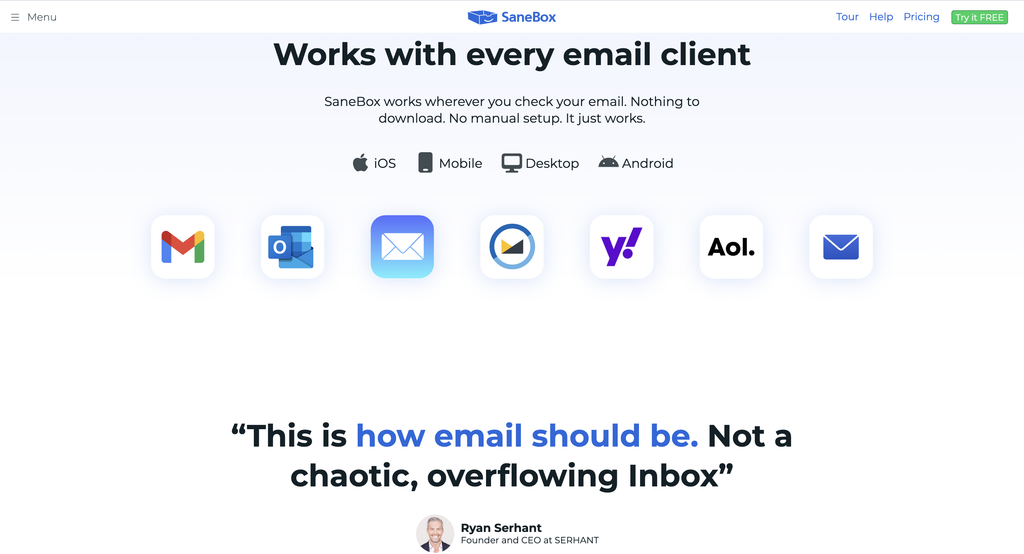
The FAQ claims any email client, service or device, naming Gmail, Exchange, Outlook and Yahoo Mail among others. One exception applies: POP accounts do not support folders, so the mechanism has nothing to work with.
Is there a discount for non-profits?
SaneBox offers an additional 25% off for educational, non-profit and government organisations, claimed by contacting support during the free trial.
Sources
- SaneBox pricing and SaneBox FAQ, accessed 2 November 2026
- SaneBox security, accessed 2 November 2026
- IETF, RFC 9051: Internet Message Access Protocol (IMAP) version 4rev2
- IETF, RFC 3501: IMAP version 4rev1
- IETF, RFC 6749: The OAuth 2.0 Authorization Framework