


Quick Verdict :
Bitdefender Total Security is a strong beginner choice if you want one security suite that covers Windows, macOS, iOS, and Android without turning setup into a project. The official product page highlights a 30-day trial, protection for up to 5 devices on the personal plan, and a bundle that goes beyond basic antivirus.
That bundle includes:
- Real-time malware protection.
- VPN traffic included on the plan.
- Password manager.
- Data breach detection.
- Privacy tools like anti-tracker, webcam protection, and safe banking.
If you want to see the product while you read, start with Bitdefender here.
What Bitdefender Is Good For :
Bitdefender Total Security is designed for people who want strong protection without having to micromanage every security setting.
The official pages make the product’s role pretty clear:
- Protect against viruses, worms, Trojans, ransomware, rootkits, spyware, and other e-threats.
- Keep devices running smoothly with optimization tools.
- Add privacy protection for browsing, banking, and remote work.
- Protect multiple device types under one account.
That makes it a good fit for families, freelancers, and small teams that want a simple but serious security layer.
The product is not trying to look complicated to prove it is powerful. It is trying to stay usable while still doing a lot.
Account Setup :
The easiest way to begin is through Bitdefender Central.
Your first setup usually looks like this:
- Create your Bitdefender account.
- Start the 30-day trial or choose a subscription.
- Add your devices.
- Install the app on each device.
- Turn on the main protections.
- Let the software run its first update and scan.
The official page says Total Security supports Windows, macOS, iOS, and Android, which is one reason the product works well for mixed-device households.
If you are new to security software, keep the first setup simple. Do the install, log in, and let Bitdefender complete the initial protection and update cycle before you start tweaking settings.

If you want a simple path into the product, start with Bitdefender here and test the trial on your main device first.
Dashboard Overview :
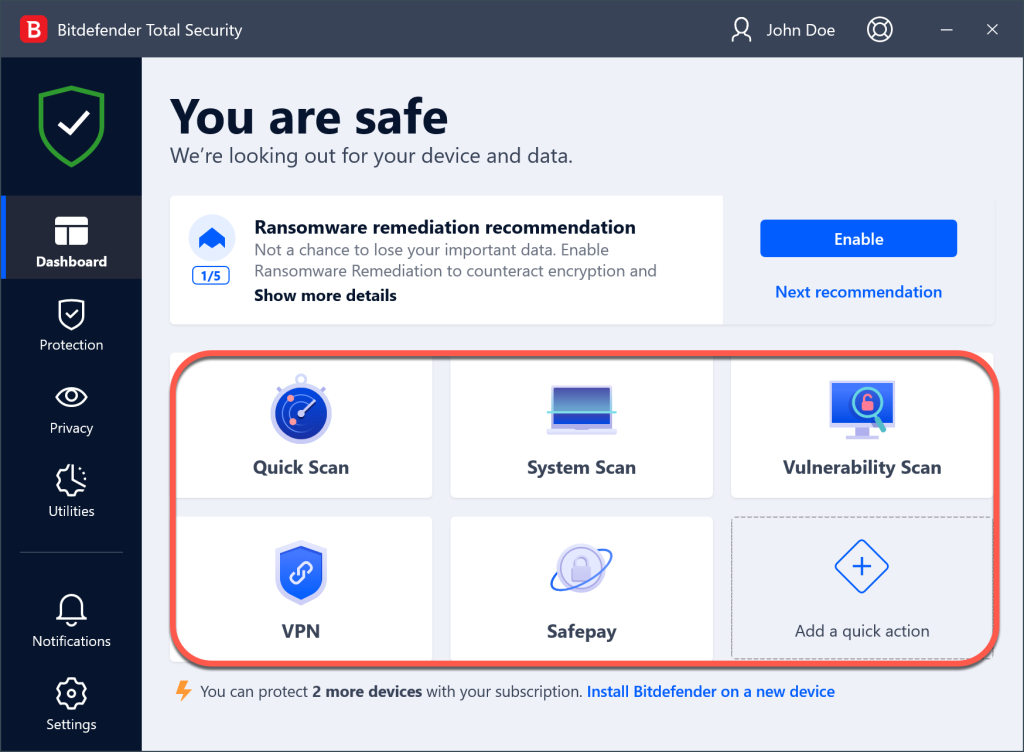
The Bitdefender Central dashboard is where you will spend most of your time at the start.
That is where you can:
- See which devices are protected.
- Check account status.
- Review alerts.
- Manage subscriptions.
- Access downloads and security tools.
For a beginner, the most useful dashboard habit is to check device health and alerts once in a while instead of ignoring them until something breaks.
The product also includes a broad set of controls for privacy and performance:
- Privacy Firewall.
- Anti-theft on supported devices.
- Safe Files.
- Anti-tracker.
- Battery Mode.
- OneClick Optimizer.
That makes the dashboard more than an antivirus console. It is a small control center for your device security.
First Workflow Walkthrough :
The first workflow is very simple:
- Install Bitdefender on the device.
- Run the first scan.
- Let the software update.
- Check the protection status.
- Turn on privacy tools you actually want.
- Repeat on the rest of your devices.
If you are using the product for the first time, it helps to think in layers.
- The first layer is malware protection.
- The second layer is privacy.
- The third layer is convenience.
Bitdefender does a decent job of giving you all three without making the interface feel too technical.
The official site also highlights a 200 MB per day VPN allowance, which is enough for light privacy use and public Wi-Fi sessions. If you want unlimited VPN, you would need a higher bundle.

If you want to compare the trial against your current setup, start with Bitdefender here and see whether the default protection feels enough on its own.
Best Practices :
The best way to use Bitdefender is to let it be your normal background safety net.
- Keep automatic updates on.
- Run scans on a reasonable schedule.
- Review alerts instead of dismissing them blindly.
- Add your devices to one account so you can see the whole picture.
- Use the password manager and anti-tracker if you want fewer separate tools.
- Turn on safe banking for sensitive transactions.
The biggest beginner mistake is trying to tune every feature on day one. You do not need to do that. Start with the core protection, then add the extras that matter most to your actual usage.
Another smart habit is to watch the device optimization tools instead of assuming security software must slow the machine down. Bitdefender’s page specifically emphasizes performance and low footprint.
Common Mistakes :
Most mistakes are simple:
- Leaving the trial unused until the last minute.
- Installing the product on one device and forgetting the rest.
- Ignoring privacy tools because the antivirus part is already working.
- Treating one account like one device instead of a multi-device plan.
- Confusing “installed” with “fully configured.”
The product is best when it is quietly doing its job. That only happens if you finish the setup properly.
Support Resources :
Bitdefender’s official pages point to:
- The product trial download area.
- The Bitdefender Central account dashboard.
- Official support documentation.
- 24/7 assistance on the consumer pages.
That matters for beginners because security software can become stressful fast if you feel stuck. The easier it is to confirm the installation and check the status, the better the experience tends to be.
When To Move Beyond The Basics :
You do not need to use every Bitdefender feature right away, but some features become more useful as your habits mature.
Consider turning on more of the suite when you care about:
- Banking or shopping online often.
- Sharing devices across family members.
- Protecting a laptop you carry everywhere.
- Storing passwords in one place.
- Reducing tracking while browsing.
That is when the extra tools stop looking like marketing and start looking like normal utility.
What To Expect After Setup :
Once the product is installed, the best outcome is mostly that you stop thinking about it.
That sounds boring, but it is the point of a good security suite.
The things you should expect to notice are:
- Fewer worries about unknown links or unsafe downloads.
- Clearer alerts when something actually needs attention.
- A better sense of which devices are protected.
- A small performance boost from optimization and cleanup tools.
The software is most valuable when it becomes part of the background. If you are checking the dashboard every day because something keeps going wrong, the setup probably needs to be simplified.
What To Do In The First Week :
The first week is mostly about confidence.
You do not need to master the entire suite. Just make sure you can answer these questions:
- Is the main device protected?
- Are the other devices listed correctly?
- Do alerts look normal?
- Does the VPN work when you need it?
- Can you find the password manager if you need it?
If those basics are in place, the suite is doing its job. The more advanced privacy tools can wait until you actually need them. The point is not to use every feature. The point is to know the protection is there when you need it.
What The Trial Is Good For :
The 30-day trial is useful because it lets you confirm three things before paying:
- The software installs cleanly on your devices.
- The dashboard feels easy enough for you to live with.
- The extra features are actually useful and not just decorative.
That is a better test than reading feature lists and hoping the product will feel right later. If the trial feels calm and helpful, the paid version usually feels the same way.
A Simple Buying Rule :
Use Bitdefender Total Security if you want multi-device protection with enough extra privacy and performance tools to replace several smaller utilities.
Skip it for now if you only need a very basic scanner and you already have a separate security setup you trust.
If you want to test the suite before making it your default, start with Bitdefender here and run the 30-day trial on the devices that matter most.
Verdict :
Bitdefender Total Security is a strong beginner security suite because it is practical, cross-platform, and easy to keep running.
The official product story is straightforward: protect the device, keep the user safer online, and do it without slowing everything down.
If you want one suite that covers everyday security and privacy in a clean way, start with Bitdefender here and test the 30-day trial before you commit to a full subscription. It is a low-friction way to see whether the suite fits your devices before you make it permanent. That is usually all a beginner needs to know before buying. Today, that is enough. It keeps the decision simple and helps you move on to setup instead of second-guessing the tool. That is the goal here.
FAQ :
Does Bitdefender Total Security have a trial?
Yes. The official page shows a 30-day free trial with no credit card required on the downloads page.
How many devices does it cover?
The personal Total Security plan is shown as 1 account for 5 devices.
Does Bitdefender include a VPN?
Yes. The official page says Total Security includes 200 MB per day of VPN traffic.
Is Bitdefender good for beginners?
Yes. It is one of the easier security suites to set up because the main workflow is mostly install, sign in, scan, and keep the protections on.