

Who This Post Is For
Keeper Security is a strong fit if you are trying to keep access control sane while the team is still small enough to move quickly. That makes it especially useful for startups, agencies, and freelancers who handle multiple client logins, shared credentials, and sensitive records every day.
The official pricing page makes the positioning pretty clear. Keeper is not just a password locker. It is a secure vault, sharing, autofill, passkey, and file storage system with business features layered on top.
If you want to test the fit while you read, start with Keeper Security here.
The reason this matters is simple: small teams are often the most vulnerable to messy credential habits. One person keeps a password in Notes. Another keeps it in email. Someone else shares a login in chat. That feels fast until it becomes a problem.
Why The Product Fits The Niche
Keeper fits this niche because it solves the exact mess that small teams create when they grow faster than their process.
Startups
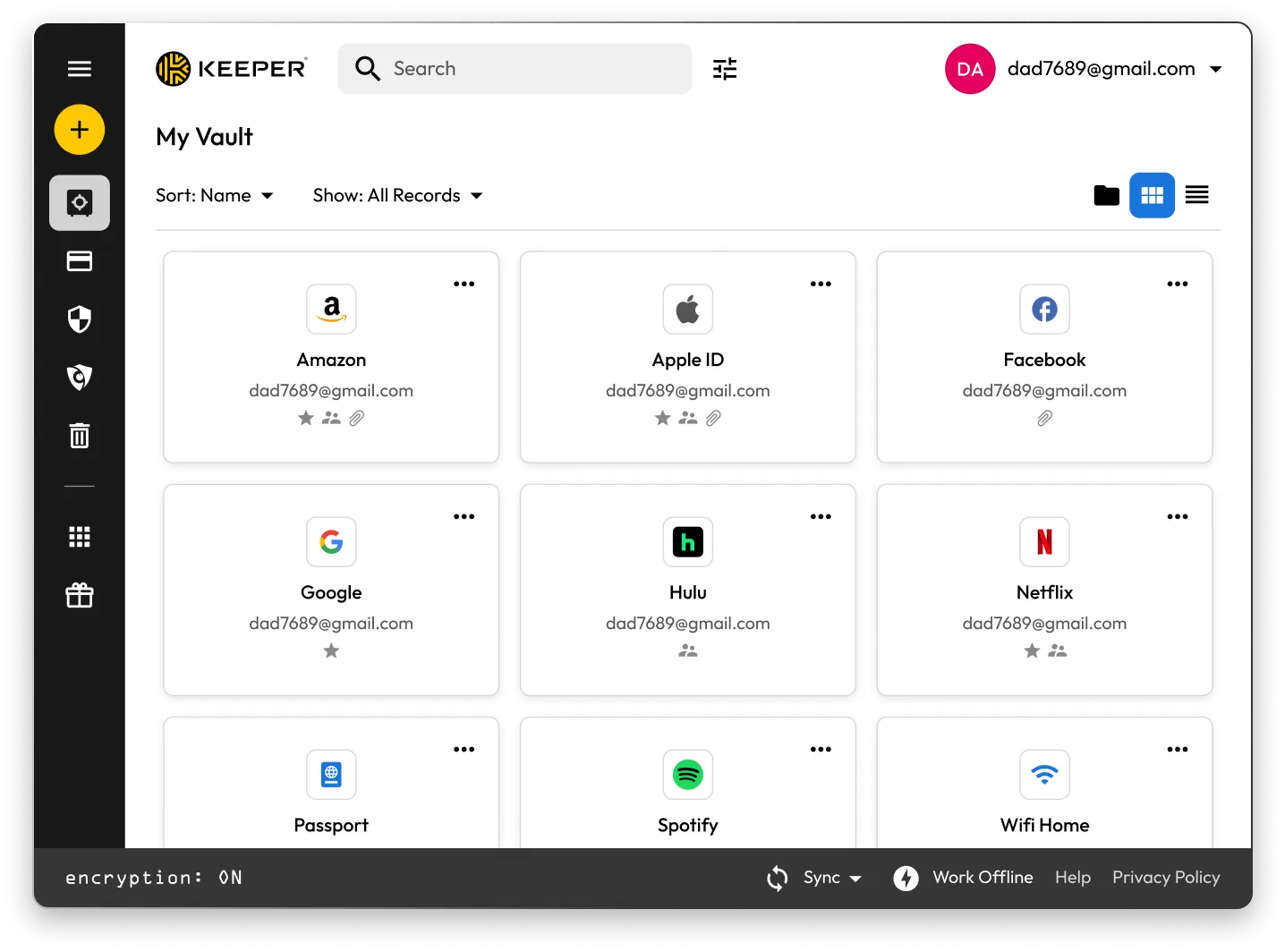
Startups usually need speed, but they also need to stop credentials from becoming tribal knowledge. Keeper helps because every user can keep an encrypted vault and access it across devices.
Agencies
Agencies need to share without chaos. Keeper’s shared folders, permissions, and secure sharing story are valuable because client access should not live in random chats or repeated email threads.
Freelancers
Freelancers often handle more than one client environment at a time. Keeper’s personal workflow is useful because it keeps passwords, passkeys, and files in one secure place without making the process feel heavy.
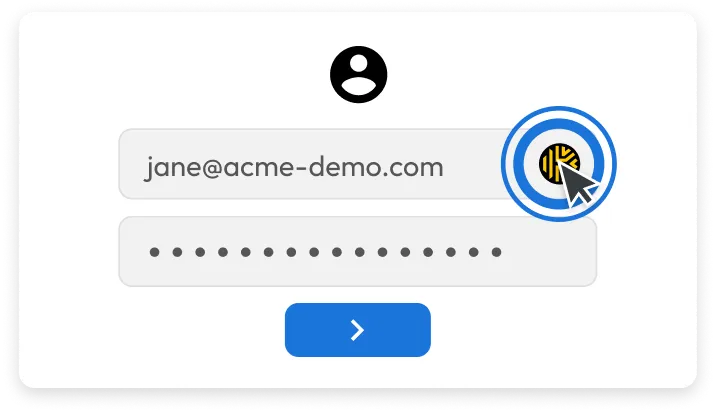
The official page also highlights mobile app, web app, web vault, browser extension, unlimited passwords and passkeys, autofill, and unlimited secure sharing on the personal side. That is a strong everyday workflow.
If you want a single secure system instead of a messy collection of login methods, start with Keeper Security here.
Top Features For The Niche
Unlimited Passwords And Passkeys
This is the core win. Keeper gives you a place to store more than just a few important passwords. Unlimited passwords and passkeys make it useful as the team grows.
Autofill Across Devices
The official page calls out autofill, which matters because a secure tool that is annoying to use usually gets abandoned.
Secure Sharing
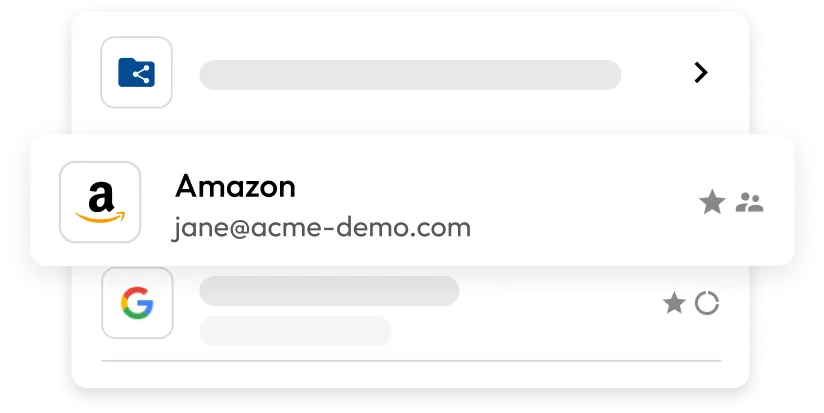
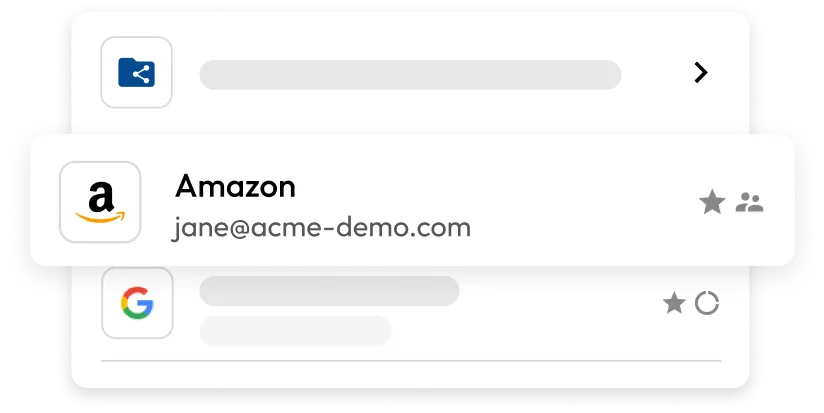
Sharing is where a lot of small teams go wrong. Keeper’s unlimited secure sharing and shared folders help keep ownership cleaner.
Encrypted Vaults
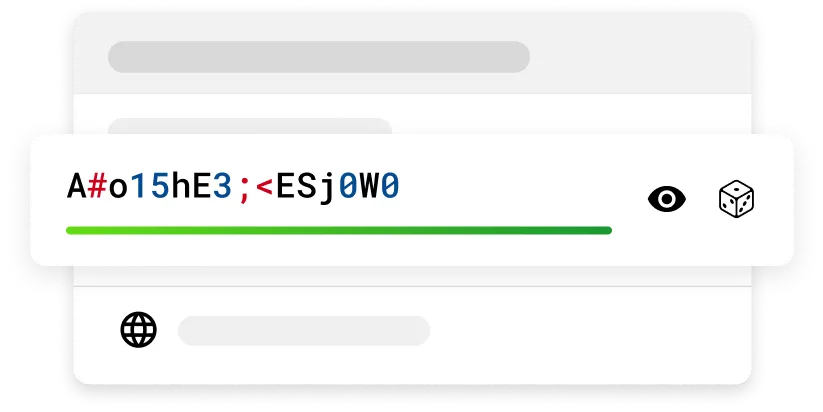
Every user gets an encrypted vault, which is the right baseline for a team that handles sensitive logins or records.
File Storage
The Family plan includes 10GB of secure file storage, which is a nice reminder that passwords are not the only sensitive thing teams need to protect.
Activity Reporting
Business Starter includes user activity reporting, which matters when you want visibility without micromanaging people.
If those features sound like the difference between calm and chaos, start with Keeper Security here.
Real-World Example
Imagine a small agency with five people.
There is one shared design platform, one ad account, one analytics stack, one client portal, and a handful of software logins that only two people should ever touch. Without a proper system, the team starts moving passwords around in chat, and nobody is fully sure who has access to what.
Keeper solves that pattern well.
The founder keeps critical admin credentials in a secure vault. The account manager uses shared folders for client access. The designer stores creative tool logins in a way that is easy to retrieve but not easy to leak. The freelancer on the project gets access only to the relevant folder.
That is the kind of workflow that makes the product feel real.
It is not about being fancy. It is about reducing the chance that the team does something risky because it was easier than the secure option.
If you are running a small team with shared access needs, test it against one client workflow first.
Why Passkeys Matter
Passkeys are a big deal for small teams because they reduce the habit of reusing weak passwords or storing them in random places.
That matters even more when one person manages multiple client accounts or when a startup team moves quickly and inherits a lot of shared access in a short time. The combination of unlimited passwords, unlimited passkeys, and autofill makes Keeper feel less like a vault you visit once a month and more like a system you use every day.
The result is simple: less friction, fewer risky workarounds, and less memory burden on the people who are already juggling too much.
Pricing In Context
This is where Keeper gets interesting because the official pricing page is public and specific.
Personal
The Personal plan is shown at 50% off and includes:
- 1 user.
- Unlimited devices and sync.
- Mobile app, web app, web vault, and browser extension.
- Unlimited passwords and passkeys.
- Autofill.
- Unlimited secure sharing.
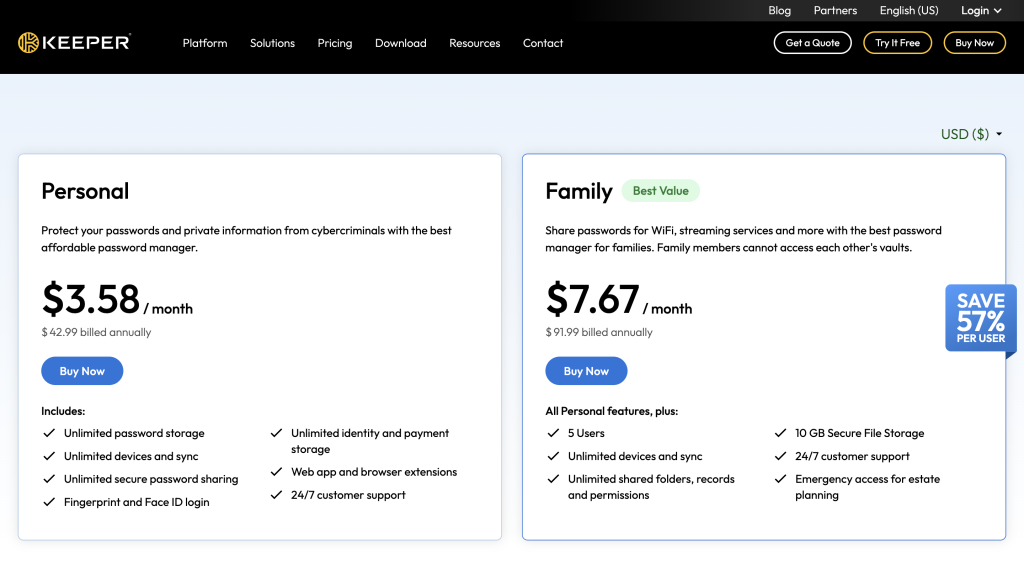
The official page also notes that the first-year discount only applies to new customers.
Family
The Family plan is also shown at 50% off and includes:
- 5 users.
- Five private vaults.
- 10GB of secure file storage.
- Share folders, records, and manage permissions.
- First-year discount only.
Business Starter
The Business Starter plan is shown at 30% off and includes:
- 5 users minimum.
- Billed annually.
- Encrypted vault for every user.
- Unlimited devices.
- Shared team folders.
- User activity reporting.
- Free Family Plan for each team member.
- First-year discount only.
That is a pretty useful ladder because it lets a small team start where it actually is instead of paying for enterprise complexity too early.
If you want the cleanest first step, start with Keeper Security here and compare the Personal, Family, or Business Starter option against your real access needs.
Alternative Tools For The Niche
Some teams will compare Keeper with other password managers or vault tools, but the buying decision usually comes down to fit.
Here is the practical comparison:
- Use a personal vault if you are truly solo.
- Use a family-style plan if you need multiple people and private vaults.
- Use a business plan if you need shared folders, reporting, and team control.
That is the real fork in the road.
The best alternative is not always the cheapest. It is the one that stops the team from improvising access.
For startups, agencies, and freelancers, the value of Keeper is that it scales from one person to a small group without making the workflow weird.
Setup Steps
Step 1: Pick The Right Plan
Start by choosing whether you are operating as one person, a family-style team, or a small business.
Step 2: Create The Vault Structure
Decide which logins should be private and which should be shared.
Step 3: Add Passkeys And Passwords
Move the important credentials first so the old weak habits stop mattering.
Step 4: Turn On Autofill
This is where the product becomes genuinely useful day to day.
Step 5: Create Sharing Rules
Use folders, records, and permissions so each person has the access they actually need.
Step 6: Review Activity
If you are on the business plan, use reporting to keep an eye on access patterns.
That is enough to get started without overcomplicating the rollout.
The nice part is that the workflow stays light even when the security posture gets stronger. That is exactly what small teams usually need.
Security should feel like a habit, not a hurdle. Keeper is at its best when the team barely notices the process because the process is already working in the background.
Verdict
Keeper Security is a very good niche fit for small teams that need secure access without turning credential management into a full-time job.
The official pricing page gives it a strong practical edge: clear personal, family, and business starter options, plus business features like shared folders, reporting, unlimited devices, and encrypted vaults.
If your team needs better password hygiene, cleaner sharing, and fewer “who has that login?” moments, start with Keeper Security here.
That is the real upside. It helps small teams behave like they already have a process.
FAQ
Is Keeper good for startups?
Yes. Startups benefit from a secure vault, sharing, autofill, and a structure that scales as the team grows.
Is Keeper good for agencies?
Yes. Shared folders, permissions, and team reporting make it a strong fit for agency access management.
Is Keeper good for freelancers?
Yes. Freelancers can use the personal vault setup to keep passwords, passkeys, and files organized across devices.
What is the best value plan?
It depends on whether you are solo, small-team, or business-oriented. Personal, Family, and Business Starter each solves a different stage of the same problem.