


Beautiful.ai is one of those tools that makes sense the moment you stop treating presentations like a blank canvas problem. The official product page leans into that idea hard: AI kickstarts the deck, Smart Slides handle the formatting, and the whole system is designed so you can focus on the story instead of nudging boxes around all afternoon. If you are the person who ends up polishing slides for everyone else, the official product experience is worth taking seriously.
For power users, the important question is not whether Beautiful.ai can make a nice slide. It absolutely can. The real question is whether it helps you move from draft to present without the usual formatting drift that turns a quick update into a design project. That is where the advanced use case comes in. You are not just making prettier decks; you are building a faster presentation workflow that stays on brand, stays readable, and still looks deliberate.
What Advanced Users Actually Get :
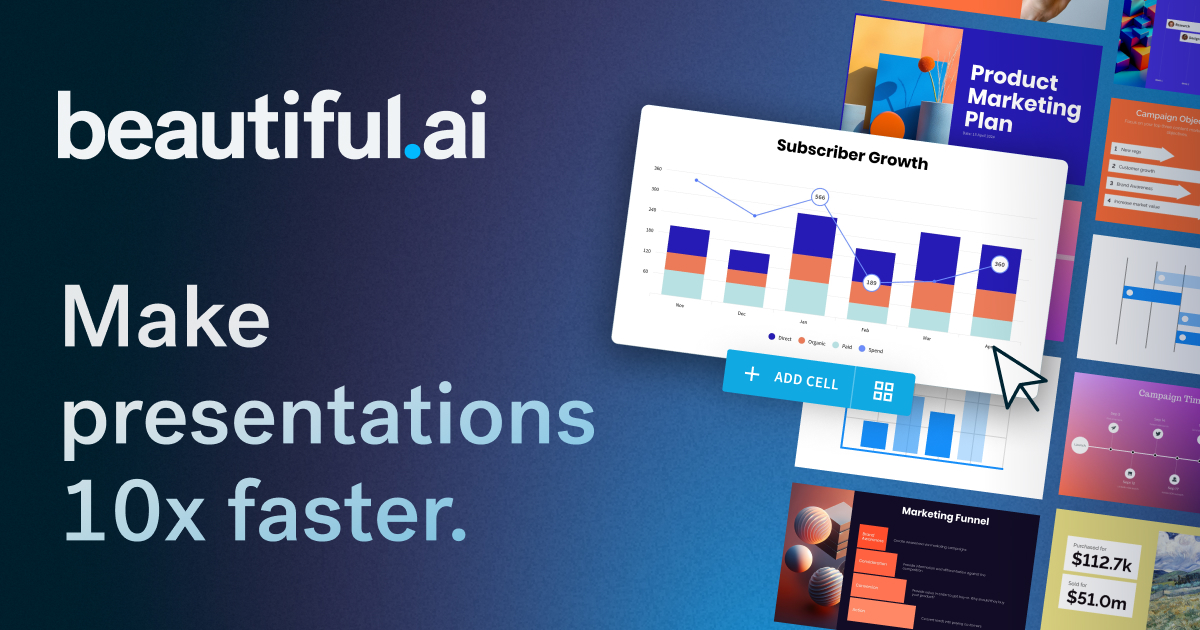
The official site calls out a few core behaviors that matter more as your usage becomes serious. Smart Slides auto-align, resize, and animate content as you edit. Create with AI turns a prompt into a structured first draft with copy, images, and layouts. Brand controls keep colors, fonts, and logos consistent. And data can be turned into animated charts and graphics without you manually rebuilding each slide from scratch.
That combination is what makes Beautiful.ai useful beyond the first five minutes. Basic users can get a decent deck quickly, but advanced users want repeatability. They want to give different people the same starting point and still get something that feels consistent. They want the template to protect them from bad spacing, off-brand colors, and the “I’ll just fix it later” design drift that tends to get worse, not better, under deadline pressure.
The official homepage also highlights a free trial, and the pricing page shows there are multiple paths depending on how deeply you need the tool. That matters because advanced users do not all need the same thing. A solo consultant may need a fast individual workflow. A startup team may need collaboration. An enterprise team may want controls and rollout support. Beautiful.ai is useful precisely because the product menu recognizes those different realities.
Advanced Workflow: From Prompt To Presentation :
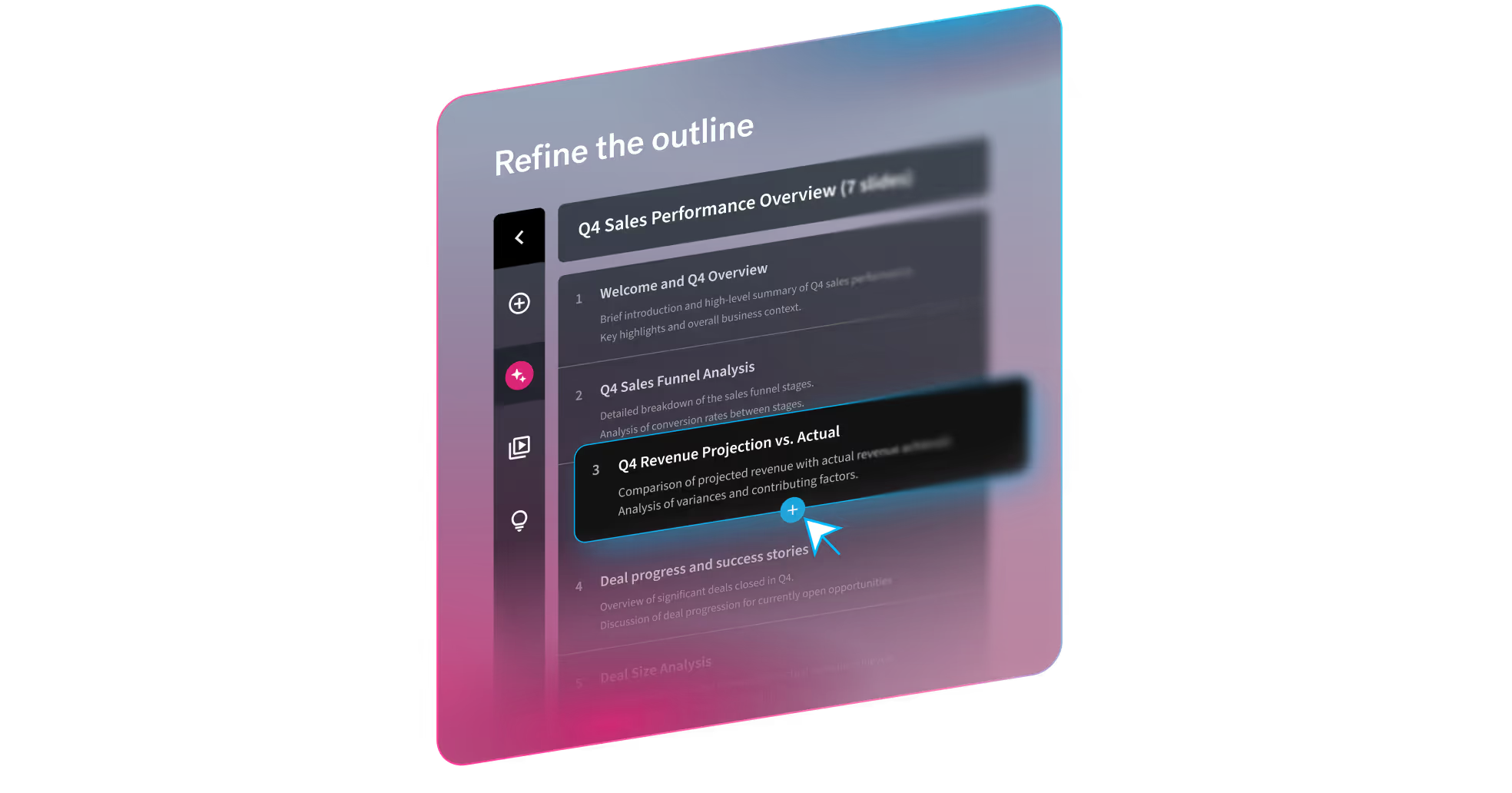
The best way to use Beautiful.ai at a higher level is to stop starting from scratch. Begin with a prompt, a rough outline, or a meeting note, then let the AI draft a structure. Once the first version exists, you are editing for clarity, not inventing structure from zero. That is where the speed gain lives. You are not wrestling with a blank slide; you are refining a usable draft.
A practical workflow looks like this:
- Start With A One-Sentence Goal. Decide what the deck must do before opening any slide.
- Use AI To Generate The First Draft. Ask for the outline, not perfection.
- Lock The Brand System Early. Set colors, logos, and fonts before editing details.
- Clean The Narrative, Not The Pixels. Fix the order and logic first, then polish.
- Use Data Slides For Proof. Turn numbers into charts rather than pasting screenshots everywhere.

That workflow matters because it changes how you work under pressure. Instead of spending an hour formatting a single page, you can spend that hour tightening the message and trimming the noise. If your team presents often, this is where Beautiful.ai earns its keep. It is not only about speed. It is about making the deck feel more coherent the first time you send it.
Where The Product Is Strongest :
Beautiful.ai is strongest when the deck needs to look polished without an army of designers. Sales teams, founders, consultants, educators, and internal ops leaders all benefit from that. Smart Slides are especially good when you know your content changes at the last minute. If the text expands or a chart gets updated, the layout keeps its shape instead of falling apart.
The other big strength is brand consistency. Once the brand system is set, the tool does a lot of work for you. That is a real advantage for teams where multiple people create decks but only one brand standard exists. A tool that quietly prevents bad spacing and off-brand colors is more valuable than a tool that simply has more shapes.
That said, advanced users should also be honest about the tool’s shape. It is design-first, not developer-first. I did not find a public API page on the official product pages I checked, which is useful to know if you were hoping to script slide generation or build a heavy automation workflow around the product. That is not a criticism. It is simply the kind of boundary a power user should understand before committing.
Pricing In Context :
The official pricing page makes the cost structure clear enough to evaluate without guessing. Pro is listed at $12 per month billed annually. Team plans are shown at $40 per user per month billed annually, or $50 per user per month on a monthly billing cycle, and enterprise plans are available for larger organizations. There is also a one-off single presentation option at $45.
For advanced users, the question is which path fits the way you work. If you are a solo operator who makes a few high-quality decks a month, Pro is probably the cleanest starting point. If you work with collaborators and want recurring team usage, the Team plan is the one to look at. If you only need a single polished deck for a pitch or event, the one-off presentation option is surprisingly practical.

The free trial also changes the equation. You can test the workflow before paying, which matters because presentation tools are emotional purchases as much as practical ones. You need to see whether the design language clicks with your work style. That is why the official trial path is worth using before you commit to a plan.
Pros And Cons :
The Upside –
- Smart Slides remove a lot of tedious formatting.
- The AI draft workflow speeds up the first version dramatically.
- Brand controls help teams stay consistent.
- Animated charts make data slides easier to read.
- Pricing is transparent enough to compare without a sales call.
The Tradeoffs –
- It is not the best fit if you want heavy technical automation or deep scripting.
- Advanced users may outgrow the limits if they want very custom slide engineering.
- Some teams will still want a human to review story flow before sending.
- The tool shines most when the content is already known and the layout work is the bottleneck.
Expert Workflow Tips :
The biggest advanced-user win is to create a repeatable presentation system. That means building a base story structure you can reuse: problem, insight, proof, recommendation, next step. You feed the structure into AI, then use Smart Slides to keep the format stable as the content changes. When the team is tired or the deadline is tight, a repeatable system saves you from improvising every time.
Another useful habit is to create a slide library for common moves. If you often show timelines, feature comparisons, or performance snapshots, use the same visual pattern each time. Beautiful.ai is especially useful when you think in modules rather than in one-off layouts. That is why founders and sales teams tend to like it: the slide library becomes a kind of presentation muscle memory.
Integration Reality Check :
One of the smartest advanced-user questions is what Beautiful.ai is not trying to be. The official product pages focus on smart slide creation, brand consistency, and faster presentation work. I did not find a public API page in the official materials I checked, which is useful to know if you were hoping for a developer-heavy automation story. That does not weaken the tool. It simply tells you the product is built for people who want presentation speed and design quality more than deep scripting.
In a practical workflow, that means you should let Beautiful.ai do the slide assembly and keep the rest of your stack simple. Bring in clean source notes, a clear outline, and your brand system, then let the product handle the visual consistency. If you want to test that approach, the official trial path is the easiest way to see whether the workflow feels better than your current setup.
A useful rule of thumb is this: if your team spends more time formatting than writing, Beautiful.ai is probably doing the right kind of work for you. That one idea is the difference between a deck tool and a deck workflow. Once you see that difference, the product becomes much easier to evaluate on its actual merits instead of on vague design preferences.
Verdict :
If you want to test whether it fits your team, start with the trial and build one real deck from your usual workflow. If that first deck feels noticeably easier, then the official product path is probably doing exactly what it is supposed to do.
Beautiful.ai is strongest when you want presentation quality without presentation friction. If your work involves frequent decks, recurring brand standards, and a lot of last-minute content changes, the advanced workflow is genuinely helpful. It will not replace every specialized presentation workflow out there, but it does reduce the amount of time you spend fighting layout software.
FAQ :
Is Beautiful.ai only for beginners?
No. It is friendly enough for beginners, but the Smart Slides and brand controls are especially useful once you need repeatable quality at speed.
Does Beautiful.ai offer a free trial?
Yes. The official site mentions a 14-day free trial with access to its AI presentation features.
What is the cheapest plan?
The official pricing page shows Pro at $12 per month when billed annually.
Does Beautiful.ai work well for teams?
Yes. The Team plan exists specifically for collaborative use, with annual and monthly billing options.
Is there a one-off option?
Yes. The pricing page shows a single presentation purchase option at $45.