

Intro For Beginners :
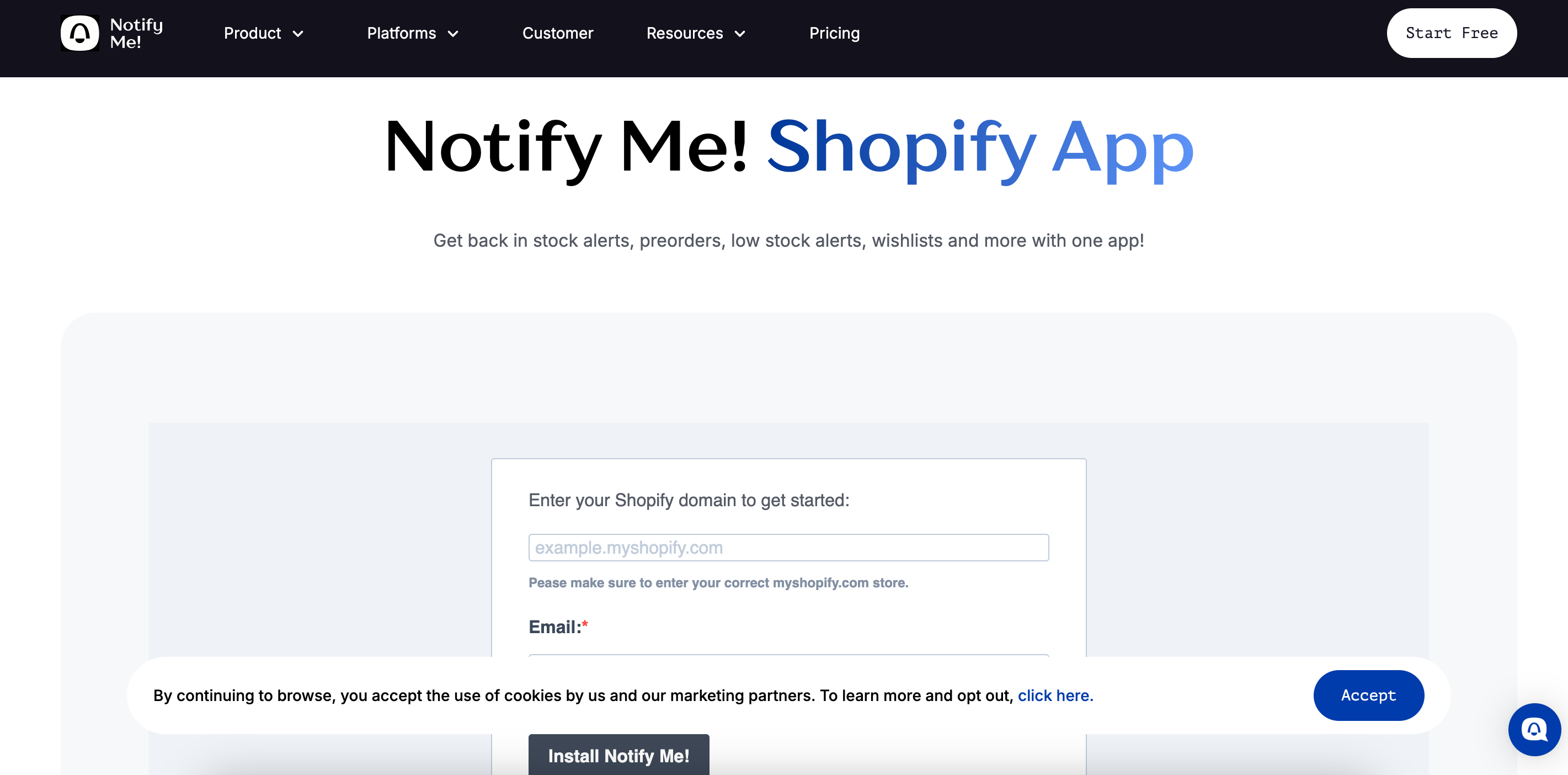
Notify Me is a Shopify-focused inventory and sales-recovery app built for stores that hate seeing interest disappear the second an item goes out of stock. On the official site, it is positioned around back-in-stock notifications, preorders, and low-stock widgets, with the promise that merchants can restock smarter, sell more preorders, and convert more traffic into sales.
That is a practical promise, not a glamorous one, and that is exactly why this kind of app matters. A lot of Shopify stores do not actually have a traffic problem. They have a product-availability problem. People want something, hit an out-of-stock wall, and leave.
Notify Me is designed to stop that leak.
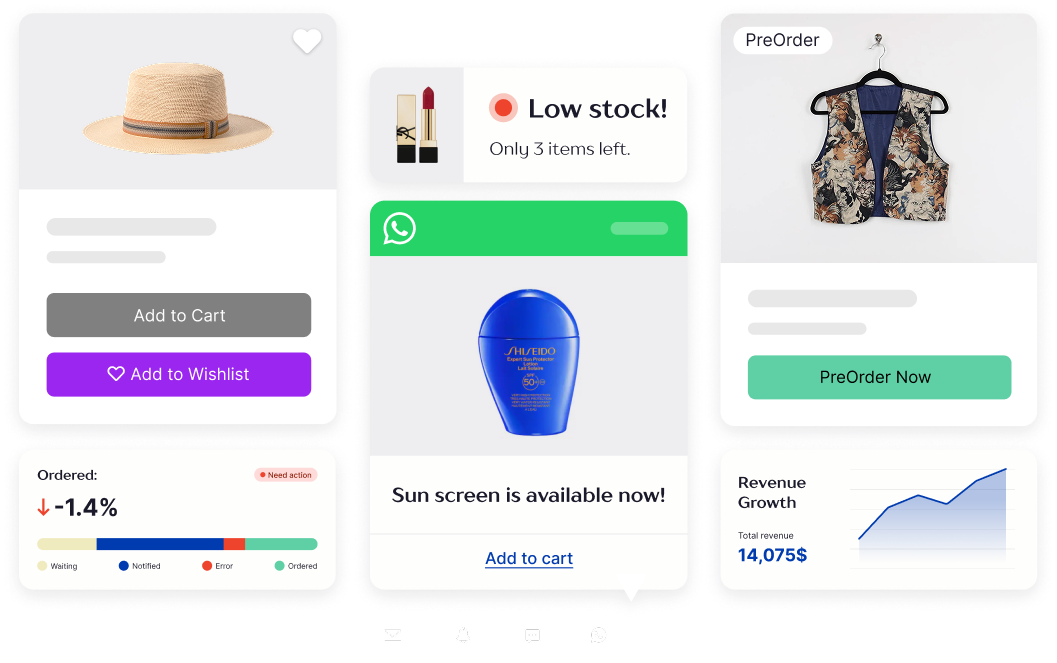
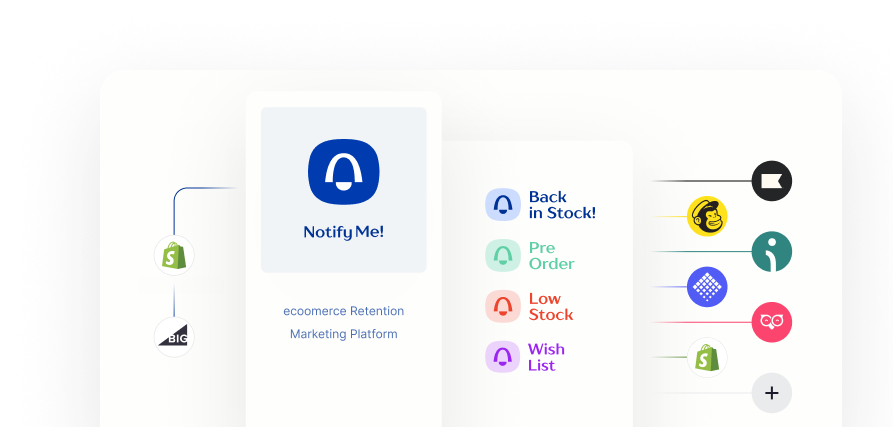
If you are new to the app, the key thing to understand is that it is not just a “notify me when available” button anymore. The official homepage and support docs position it as a broader inventory-demand tool for:
- Back-in-stock alerts.
- Preorders.
- Low-stock urgency widgets.
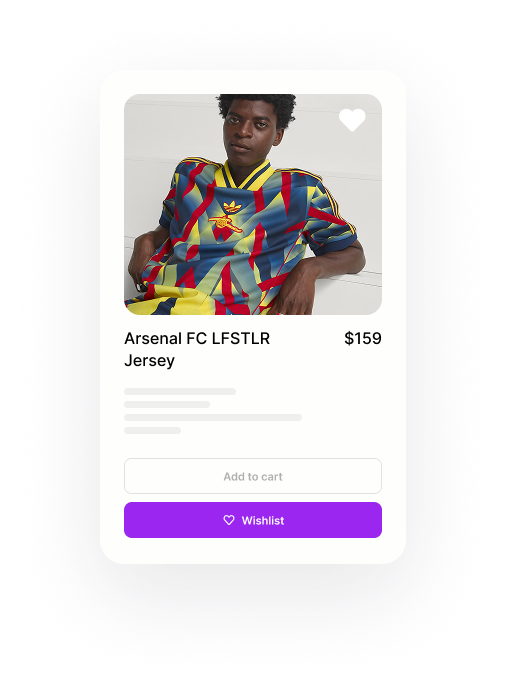
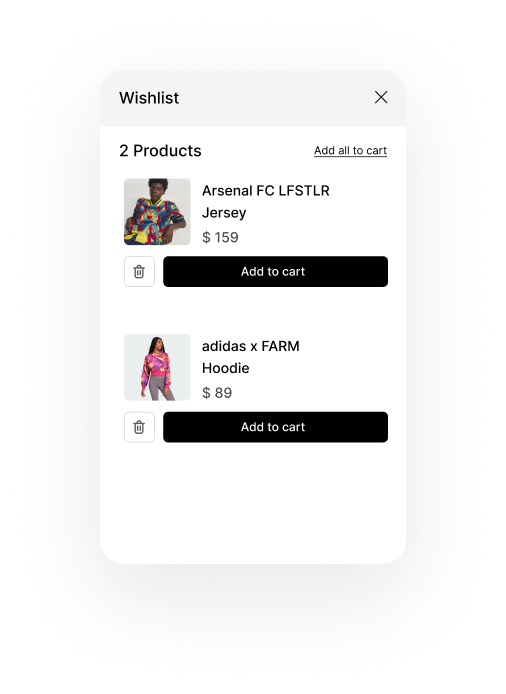
- Wishlist and demand signals.
- AI-supported restock guidance.
If you want to see the product while you read, start with Notify Me here.
What Notify Me Actually Does :
The official homepage explains the product well: it helps Shopify stores increase sales with or without stock by managing low-stock and out-of-stock products inside one app.
That means the beginner use case is simple:
- A product sells out.
- Customers can ask to be notified when it returns.
- The merchant collects demand instead of losing the shopper.
- The store can also keep selling through preorders if that fits the product.
- Low-stock messaging can create urgency before the item disappears entirely.
That alone can recover meaningful revenue for stores with fast-moving inventory, limited drops, seasonal launches, or products that frequently cycle in and out of availability.
The homepage also says more than 20,000 Shopify stores trust the app to recover lost sales. That is not a guarantee of fit, but it does show the product is aimed at a real merchant problem, not a made-up ecommerce buzzword problem.
Account Setup :
Notify Me is relatively beginner-friendly because the setup path is tied to Shopify. The official Shopify page explains the flow in practical terms:
- Install Notify Me from the Shopify App Store.
- Set up with guidance from the team if needed.
- Start using back-in-stock, preorder, and low-stock features on the products that need them.
That is one reason the tool is appealing. It is not asking you to redesign your store from scratch. It is asking you to tighten a specific revenue leak.
For a beginner, the smartest setup order looks like this:
Step 1: Pick One Inventory Problem First
Start with whichever issue is costing you the most money right now:
- Lost sales from out-of-stock items.
- Interest around prelaunch or restock campaigns.
- Slow-moving customers who need a nudge when stock gets low.
Step 2: Enable The Correct Customer Journey
Notify Me works differently depending on the outcome you want. Back-in-stock alerts are about recovery. Preorders are about continuing sales. Low-stock alerts are about urgency. Do not turn everything on blindly. Match the feature to the behavior you want.
Step 3: Customize Storefront Messaging
The official support docs make it clear that visibility and appearance can be managed. Use that. The app should feel native to your store, not like a random plugin stapled onto your product page.
If you want to start from the official install path, take a look here and use one product collection as your pilot.
Dashboard Overview :
Notify Me’s official content emphasizes tracking requests, understanding customer demand, and using those signals to inform restock and preorder decisions. That is why the dashboard side matters.
Beginners should expect the app to help them answer questions like:
- Which sold-out products still have strong interest?
- Which preorder items are gaining traction?
- Which low-stock items are worth pushing harder?
- Which notifications actually turn into purchases?
This is more valuable than it sounds. Stores often guess at demand when the data is sitting right there in customer actions. Notify Me tries to turn that passive demand into something measurable.
The support docs also explain that notifications, preorder activity, and visibility settings can be tracked and adjusted through the app. That makes the dashboard useful not just for seeing numbers, but for deciding where inventory and promotional attention should go next.
Your First Workflow :
The best beginner workflow is usually the back-in-stock flow, because it is easy to understand and easy to measure.
Here is the simplest path:
- Add the Notify Me button to sold-out products.
- Let customers register for alerts.
- Restock the item.
- Trigger the notification.
- Measure whether those alerts convert back into sales.
That is the cleanest place to start because it gives you fast feedback. If it works, you can expand into preorder campaigns and low-stock messaging next.
The second strong beginner workflow is preorder setup for products with predictable demand. The official support explanation of how the tool works makes it clear that preorders are meant to keep revenue moving even when inventory is not physically available yet.
That can be useful for:
- New product launches.
- Limited runs.
- Seasonal drops.
- Replenishment delays.
Best Practices For New Stores :
Start With High-Intent Products –
Do not test on items nobody cares about. Use products that already show demand or frequently sell out.
Match The Feature To The Inventory Reality –
Use back-in-stock for recoverable demand. Use preorder when you can confidently fulfill later. Use low-stock when scarcity is real and helpful.
Pay Attention To Appearance –
The tool should match your storefront. The support docs specifically talk about managing visibility and customizing the alert appearance, so use that control.
Use The Data For Reordering Decisions –
Notify Me is not just about the widget. It is also about better inventory judgment. The homepage’s AI angle is built around helping merchants understand what to restock and what to sell on preorder based on millions of requests, restocks, and orders.
Pricing Context :
The pricing page is public, which is helpful. As of April 2026, the official pricing page shows a free plan and a paid Kickstart plan at $9.90 per month for qualifying Basic Shopify stores in their first year. The pricing help docs also explain the broader current pricing model for new users, including plans such as Starter, Standard, Rocket, and Notify Me Plus, with usage rules and preorder overage logic.
That means beginners should understand two things:
- There is a low-friction path to testing the product.
- Usage and overage rules matter once the store grows.
The pricing help center also explains that SMS and WhatsApp are billed separately by country and that preorder limits can create extra charges beyond the base subscription. That is not a reason to avoid the app. It is just a reason to read the billing logic before you scale.
If you want to test the platform at the official entry point, start with Notify Me here and check your likely usage pattern before you move into a bigger plan.
Common Beginner Mistakes :
Turning On Everything At Once –
A beginner store does not need every feature active on day one. Start with the one revenue leak you understand best.
Ignoring Billing Rules –
The help docs are clear that subscription charges, preorder usage, and message costs can work differently depending on the plan and region. Read that before volume grows.
Using Weak Product Pages –
A back-in-stock widget cannot save a product page that already converts badly. Good demand capture still needs a credible product page.
Treating It Like A Cosmetic App –
Notify Me is most useful when it informs inventory and merchandising decisions, not just when it adds one more button to the page.
Support Resources :
Notify Me has a solid beginner-support setup across:
- The main product site.
- The Shopify-focused landing page.
- The pricing page.
- The help center with onboarding and billing articles.
That matters because inventory tools always raise practical questions. Beginners should use the docs for visibility settings, billing logic, and feature behavior rather than guessing.
Verdict :
Notify Me is a strong beginner-friendly Shopify app in 2026 because it tackles a very real merchant problem in a focused way: losing revenue when products are unavailable. The official positioning around back-in-stock alerts, preorder flows, low-stock widgets, and AI-supported inventory decisions gives it more depth than a simple notification app.
It is especially compelling for stores with repeat sellouts, planned drops, preorder demand, or a need for cleaner demand signals before restocking. It is less about flashy ecommerce theory and more about recovering money you were already close to making.
If that is the problem you want to fix, start with Notify Me here and pilot it on your most in-demand collection first.
FAQ :
What is Notify Me used for?
It is used for back-in-stock alerts, preorders, low-stock messaging, and demand capture on Shopify stores.
Is Notify Me beginner-friendly?
Yes. Its Shopify integration, public pricing, and support documentation make it approachable for merchants who are new to demand-capture tools.
Does Notify Me have a free plan?
Yes. The official pricing page shows a free plan, along with paid options and separate billing for SMS and WhatsApp usage.
What is the best feature to start with?
For most beginners, back-in-stock notifications are the easiest and clearest first workflow to launch.