

Pricing Overview
Office Timeline pricing in 2026 is a little different from the usual SaaS script, because the product is sold around usage format as much as around feature depth. The official pricing page is built around two purchase paths:
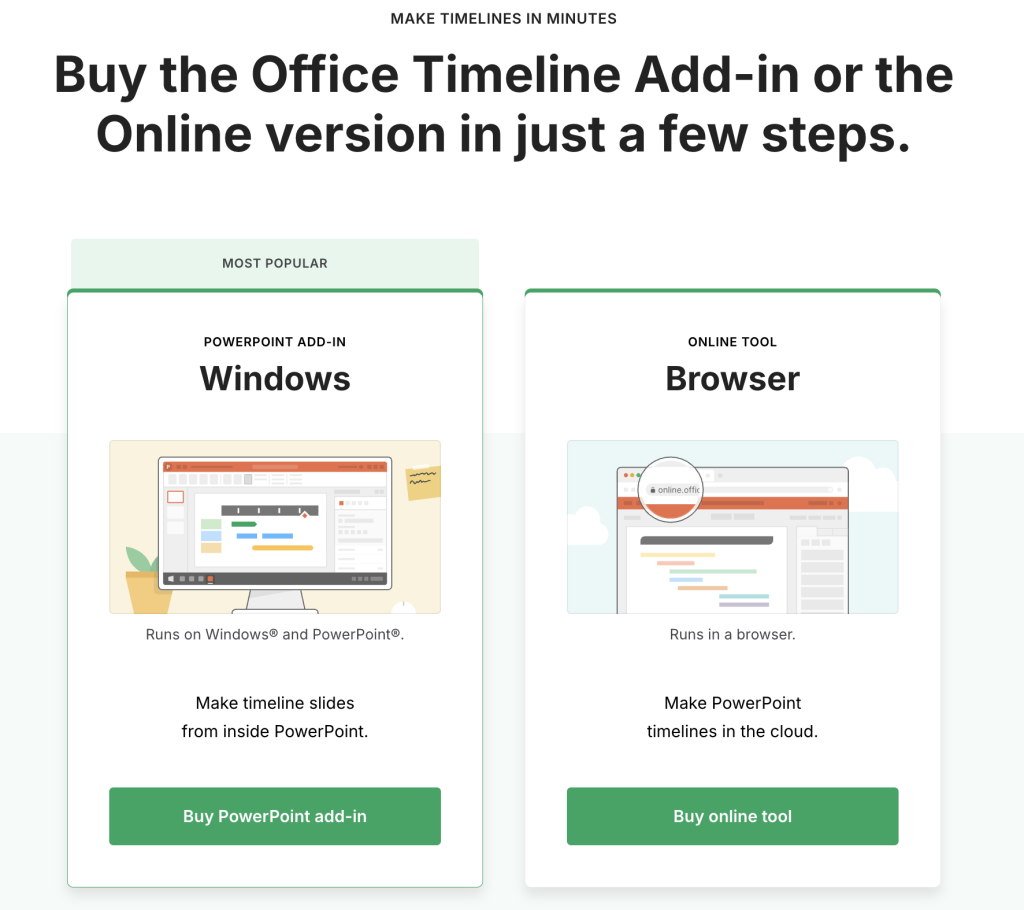
- The PowerPoint add-in for Windows.
- The Online tool that runs in a browser.
That framing matters. Office Timeline is not trying to sell one generic app experience to everyone. It is recognizing that some buyers want native PowerPoint control, while others want browser access, collaboration, and cloud convenience.
The official pricing page also makes a few important billing points very clear:
- Both products are annual subscriptions.
- Licenses are per user.
- The add-in uses a Product Key for activation.
- The online tool uses username-and-password access.
- There is a 30-day money-back guarantee.
So even though the public page does not surface a neat pricing table in the search snippets the way some other SaaS tools do, the commercial model itself is still easy to understand. You are choosing between an add-in and a browser, then paying annually per user.
If you want to compare the two options while you read, start with Office Timeline here.
What You Are Actually Buying
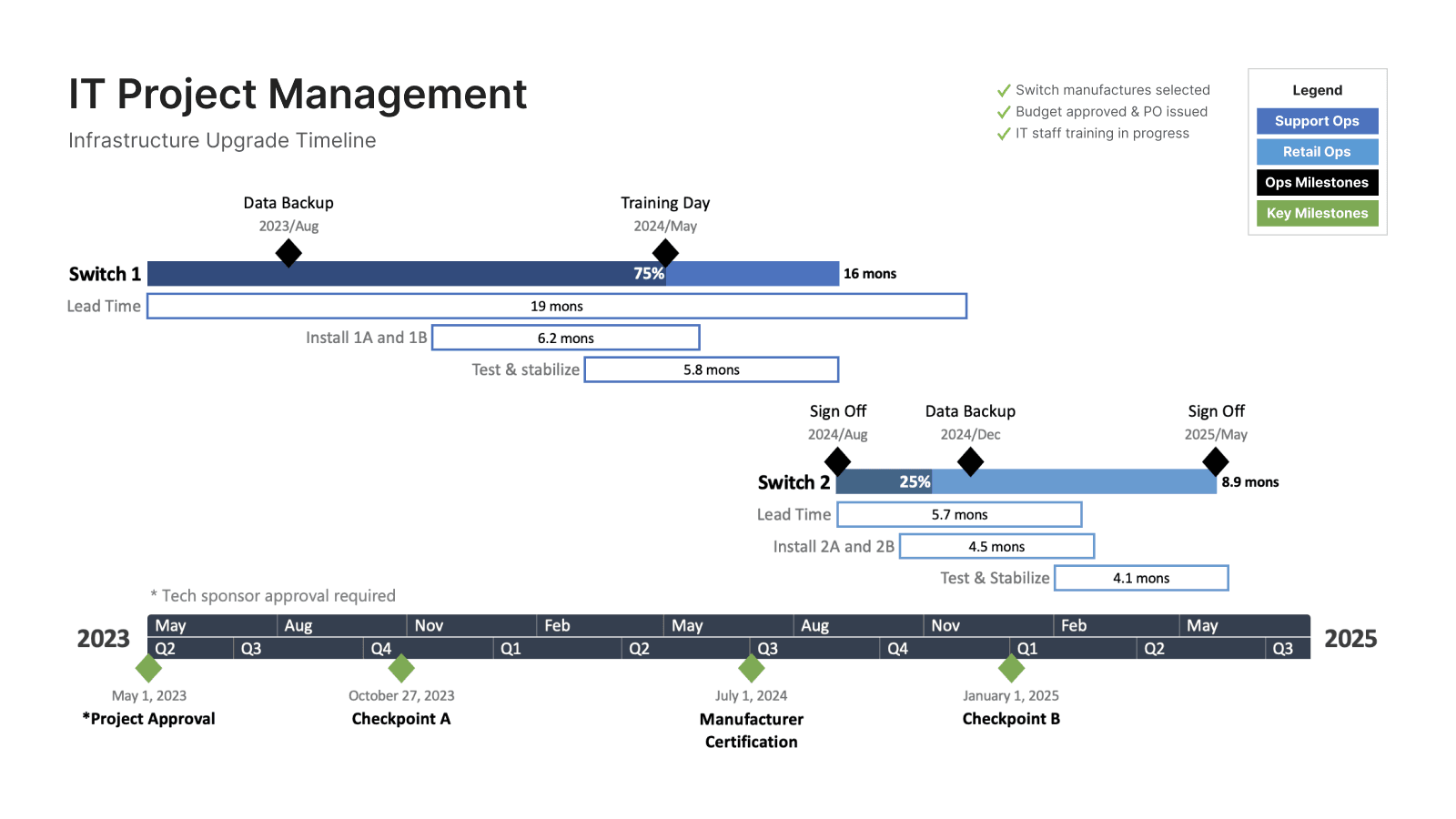
With Office Timeline, you are not paying for a sprawling project management suite. You are paying for a timeline communication tool that helps turn project data into presentation-ready visuals.
That is why the pricing should be read through a reporting lens.
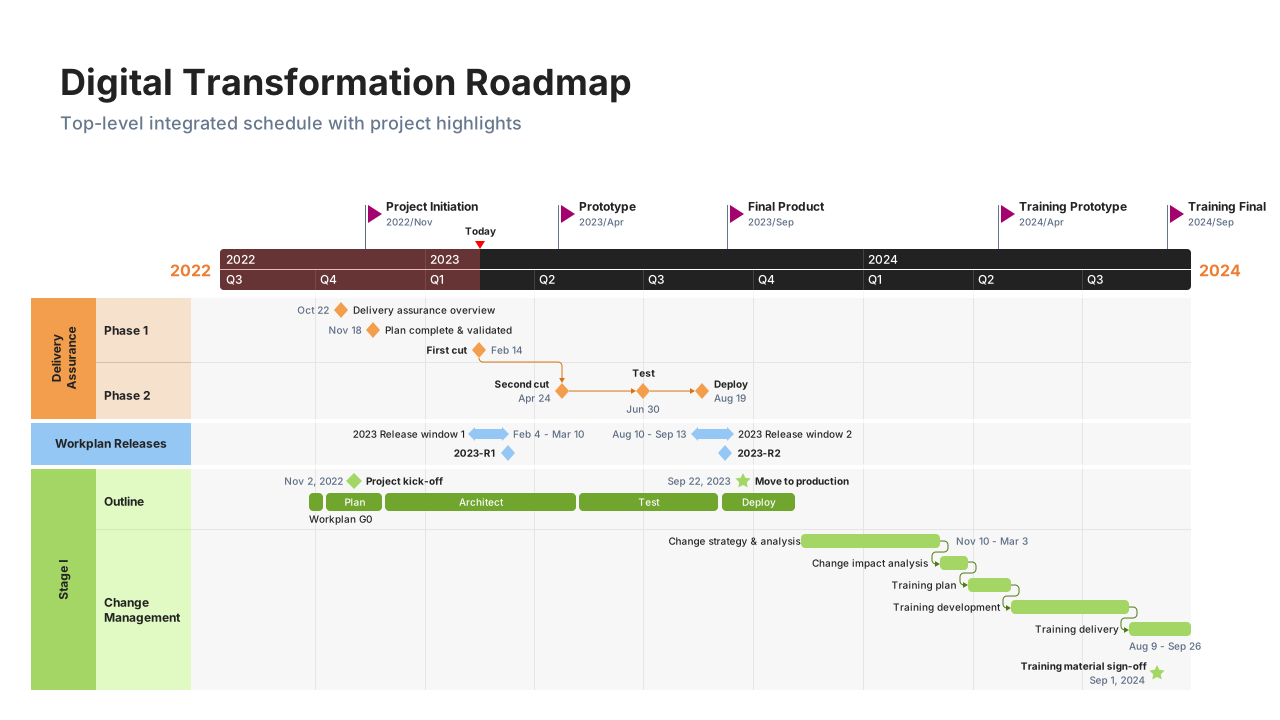
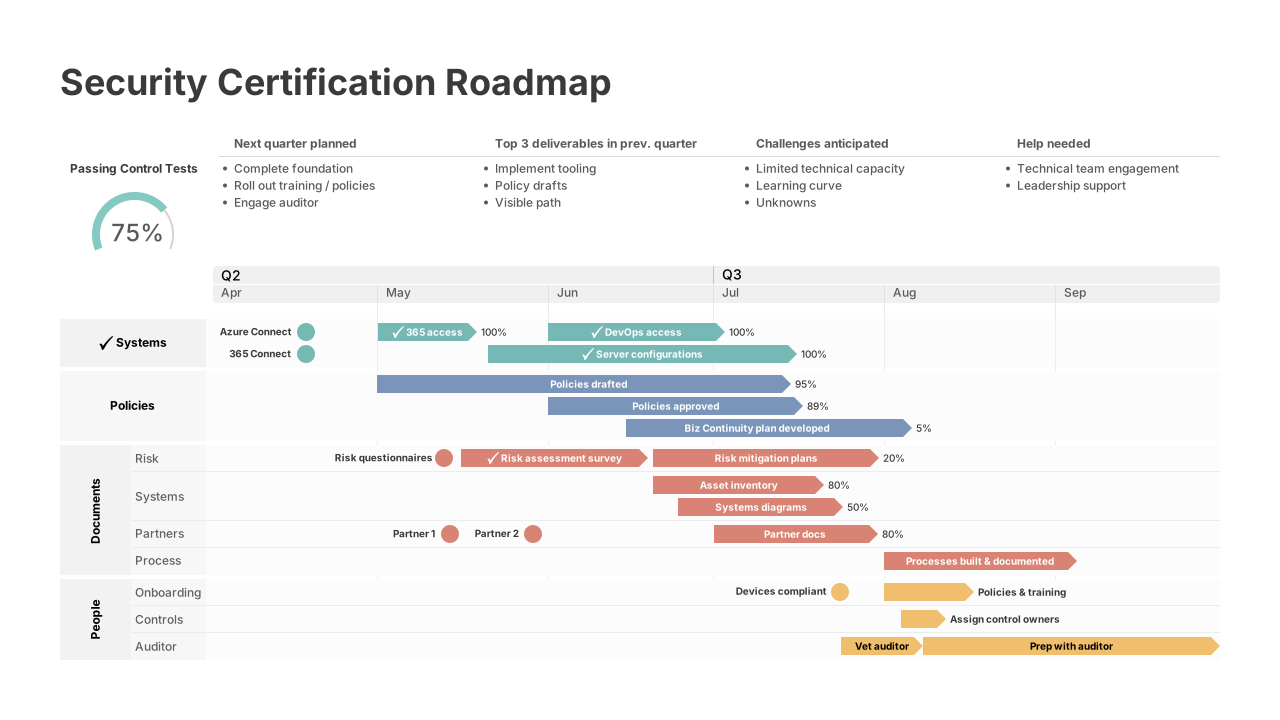
The official pricing page says the PowerPoint add-in is for users who want to make timeline slides inside PowerPoint on Windows. The Online tool is for users who want a browser-based workflow that still produces timeline, roadmap, and Gantt visuals with easy sharing and PowerPoint or PNG outputs.
That means the real commercial question is:
- Do you want PowerPoint-native creation?
- Or do you want browser-based convenience and collaboration?
Once you answer that, the rest of the pricing story becomes much easier.
Add-In Versus Online Tool
This is the most important pricing split on the entire page.
PowerPoint Add-In
The official page positions the add-in for Windows and PowerPoint users. It emphasizes features such as:
- Working directly inside PowerPoint.
- Roadmaps and swimlane slides.
- Timelines and Gantt charts.
- Dependencies and critical path.
- Integrations with Excel, Project, Smartsheet, Jira, and more.
- Drag-and-drop updates.
- Planned versus Actual tracking.
This is the better fit for teams already locked into PowerPoint-heavy reporting.
Online Tool
The official page positions the Online tool as browser-based and accessible from PC or Mac. It emphasizes:
- Any-browser access.
- Timelines, Gantt charts, roadmaps, and swimlanes.
- Collaboration in the browser.
- Downloading timelines as PowerPoint or PNG.
- Integrations with Excel, Project, Google Slides, Google Docs, and more.
- Prebuilt templates.
- No installation required.
This is the better fit for teams that want more flexibility or have mixed-device environments.
If you want to pressure-test which path is more realistic, start with Office Timeline here and compare one real reporting cycle in PowerPoint versus the browser.

Hidden Costs And Gotchas
Office Timeline is pretty clear about the big structure, but there are still a few practical things worth flagging.
Annual Billing Changes: The Buying Psychology
The official page says subscriptions are annual, not monthly. That means the tool needs to earn trust at the reporting workflow level, not just the curiosity level.
Per-User Licensing Matters
The FAQ states that annual licenses are granted per user for both the add-in and the online product. Companies that want access for multiple employees need one license per person. That is obvious once you read it, but it matters for budget planning.
Product Choice Comes Before Feature Choice
Some buyers will spend too much time obsessing over edge-case features before answering the simpler question: should this team use the PowerPoint add-in or the browser tool?
Upgrade Paths Are Part Of The Cost Story
The official page says add-in subscriptions can be upgraded to Plus or Expert by paying the price difference. That is useful because it means buyers do not have to guess perfectly on day one, but it also means the cheapest starting point is not always the final cost path.
ROI Example
The fastest ROI case for Office Timeline is time saved on recurring status reporting.
Imagine a PM, consultant, or PMO lead who spends hours every week:
- Rebuilding timelines in PowerPoint.
- Cleaning up stakeholder visuals.
- Updating milestones manually.
- Translating project data into executive-friendly slides.
If Office Timeline cuts even a modest amount of that time while improving slide clarity, the annual subscription can make sense quickly. The value is even stronger if the tool reduces last-minute deck chaos and makes project updates easier to refresh.
This is why the product should be judged against reporting labor, not against generic SaaS sticker comparisons.
Cost Comparison To Alternatives
Compared with using PowerPoint alone, Office Timeline adds cost. Compared with the manual time spent making project visuals presentable, it can save a lot of friction.
Compared with all-purpose PM tools, Office Timeline is more specialized. That is actually the point. You are not buying it to manage every task in your business. You are buying it to communicate plans and progress with less pain and more polish.
Compared with diagram tools that do not care about project reporting, it has a stronger fit for:
- Executive status decks.
- Client presentations.
- PMO reporting.
- Timeline-heavy stakeholder updates.
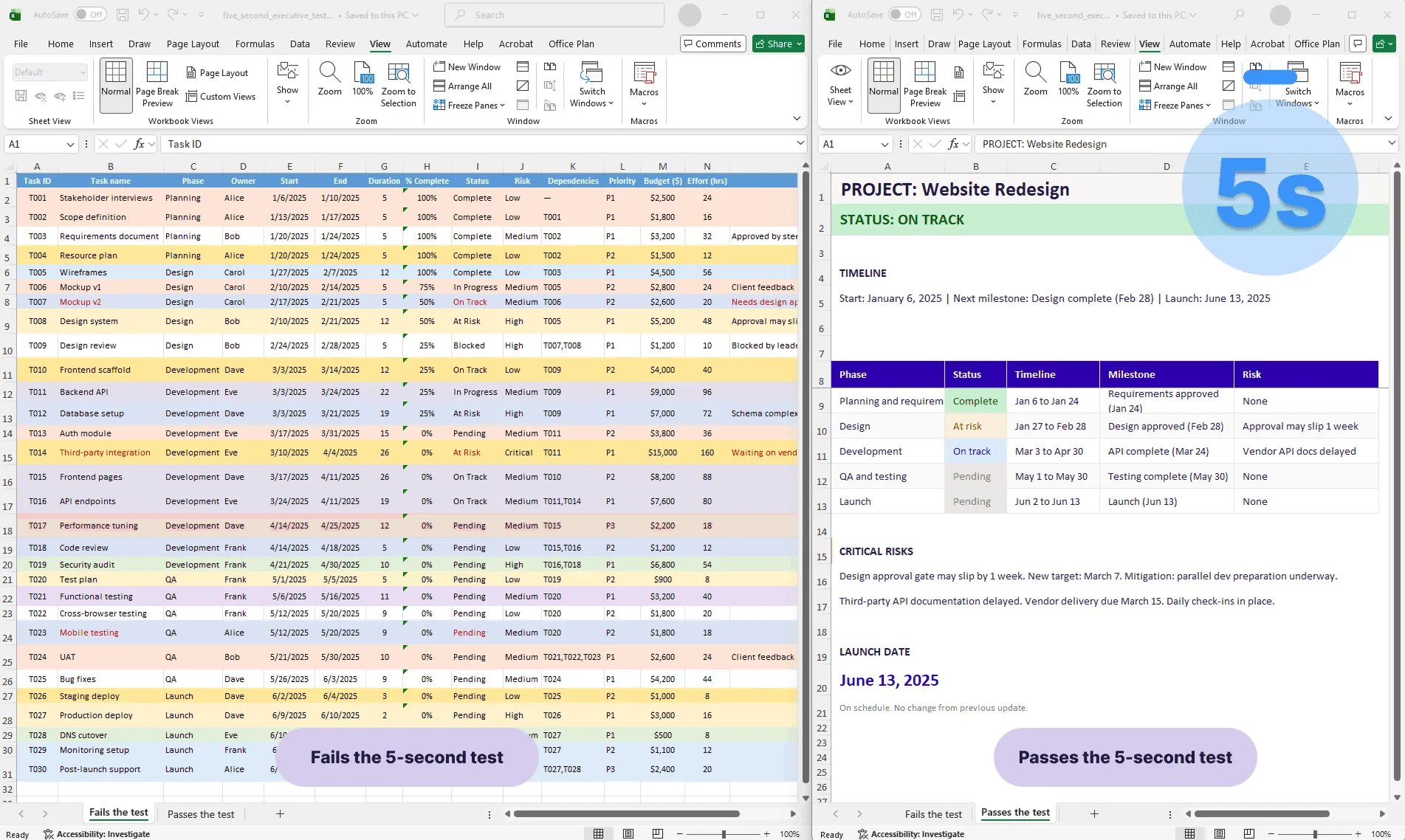
Another useful comparison is internal consistency. Teams that build reporting visuals manually often end up with decks that look different every week, depending on who edited them last. Office Timeline’s templates, structured formats, and dedicated reporting workflow can reduce that presentation drift in ways general-purpose tools do not.
Best Value Fit
The best-value option depends more on workflow than on abstract feature envy.
Choose The Add-In If
- Your team already lives in PowerPoint.
- Windows is the normal environment.
- Slide-native editing is the biggest priority.
- Dependencies and critical path views matter.
Choose The Online Tool If
- Your team needs browser access.
- Mac support matters.
- Collaboration and sharing matter more.
- You still want PowerPoint output without building inside PowerPoint.
That means “best value” is really a fit question, not a universal tier question. The cheaper wrong format is still a bad buy.
If you want to test the fit honestly, start with Office Timeline here and run one current project update through the product your team would actually use.
Billing Confidence
One of the strongest parts of the official pricing page is the buying-confidence language.
The page says:
- Both products are annual subscriptions.
- Renewal reminders are sent before expiration.
- Auto-renew can be turned off.
- There is a 30-day money-back guarantee.
- Enterprise buyers can use procurement processes and request direct pricing.
That removes a lot of uncertainty for business buyers. It also makes Office Timeline easier to recommend to organizations that need a legitimate purchasing path rather than a personal-credit-card experiment.
It also gives smaller teams a cleaner testing path. They can evaluate the product in a real reporting cycle, decide whether the format fit is right, and still have refund protection if the workflow is not sticky enough to justify the subscription.
Verdict
Office Timeline pricing in 2026 is less about a giant public pricing chart and more about a clear annual licensing model built around two product formats: PowerPoint add-in and browser-based Online. The official page does a good job explaining the difference, the licensing logic, the renewal flow, the upgrade path, and the refund protection.
The simple takeaway is this:
- Buy the add-in if your reporting world revolves around PowerPoint on Windows.
- Buy the Online tool if flexibility, browser access, and collaboration matter more.
If the product saves time every week on timeline reporting, the annual subscription can be easy to justify. If your team rarely presents timelines or never struggles with slide updates, the value will be weaker.
That is really the heart of the pricing question. Office Timeline is worth it when reporting is frequent, visual polish matters, and updates happen often enough that manual slide work becomes expensive in time and attention. It is not worth forcing if your team barely touches timeline communication in the first place.
For teams that live in milestone reviews, steering-committee decks, or client update cycles, that line gets crossed pretty quickly. In those environments, even moderate time savings can stack up over a year and make the subscription much easier to defend.
That practical reporting value is where the product’s annual cost usually earns its keep.
If you want to test that with a real workflow, start with Office Timeline here and compare the result to the way your team builds project visuals today.
FAQ
How does Office Timeline pricing work in 2026?
The official pricing page frames Office Timeline around two annual per-user subscription products: the PowerPoint add-in and the Online browser-based tool.
Is Office Timeline billed monthly or yearly?
The official FAQ says subscriptions are annual for both the add-in and the Online tool.
Can I cancel Office Timeline?
Yes. The official page says there is a 30-day money-back guarantee, and it also explains that auto-renew can be turned off.
Which Office Timeline option is better for most teams?
The better option depends on the workflow. Teams centered on PowerPoint and Windows will usually prefer the add-in, while browser-first or mixed-device teams will often prefer the Online tool.