

Intro For Beginners
Uniqode is a good place to start if you want QR codes that do more than point to a static link. The official features page shows a platform built around dynamic QR codes, customizable designs, analytics, integrations, bulk generation, teams, and digital business cards. That makes it much more than a simple free QR generator.
If you are new to QR code tools, the big idea is this: Uniqode lets you create codes you can track, edit, brand, and reuse across campaigns without rebuilding everything from scratch. That matters if you are using QR codes for packaging, flyers, menus, product pages, events, or offline-to-online marketing.
If you want the short version, this guide is for beginners who want to create a useful QR code the right way the first time. If that sounds like you, start with Uniqode here and test a small campaign before you roll it out everywhere.
Account Setup
The first thing to understand is that Uniqode gives you a real product stack, not just a one-off QR generator. The official site offers a free trial, a pricing page, and a dashboard sign-in flow, so the setup is closer to a campaign platform than a disposable utility.
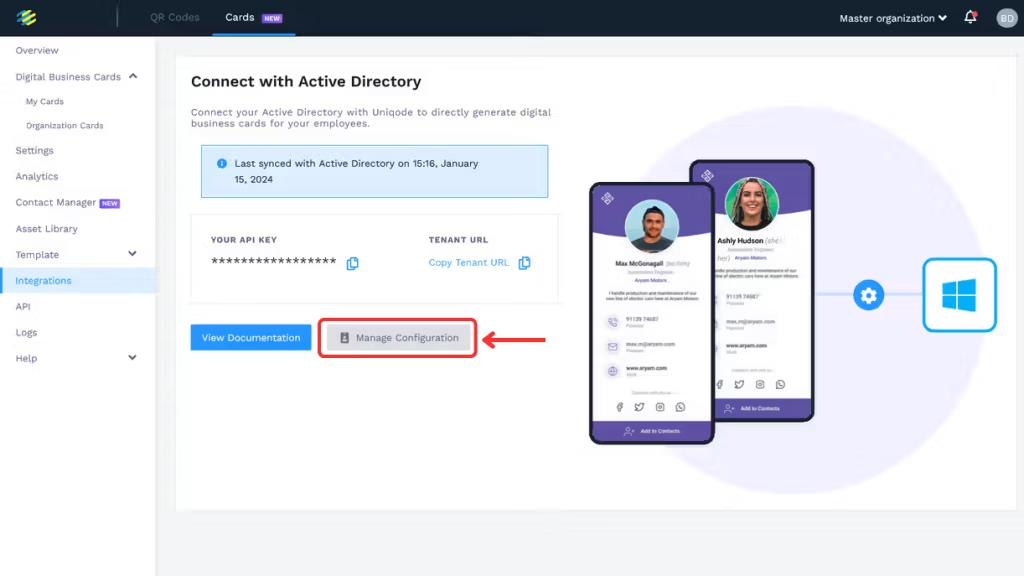
For a beginner, the setup path should feel simple:
- Sign up for the trial or create an account.
- Choose whether you need static or dynamic QR codes.
- Add your destination URL, landing page, PDF, form, or other content type.
- Customize the code with colors, logo, shape, and frame.
- Generate the QR code and test it on a real phone before printing anything.
That testing step is important. A QR code can look perfect on screen and still be awkward in the real world if the landing page is slow, the contrast is poor, or the call to action is unclear. If you want to avoid that, start with Uniqode here and make one test code before you scale to a full batch.
Dashboard Overview
Uniqode’s feature page shows that the dashboard is built for more than code creation. It includes QR code tracking, analytics, integrations, teams, asset library tools, labels, custom access, template lock, QR code transfer, and white-label support.
For a beginner, that can sound like too much. It is not. It just means the platform is ready when your QR use case stops being “I need one code” and becomes “I need a process.”
The dashboard is where you can think about QR codes in a more organized way:
- Which campaign is this for?
- Is the code static or dynamic?
- Do I need tracking?
- Is this code for a print piece, a landing page, or a digital campaign?
- Will another teammate need access?
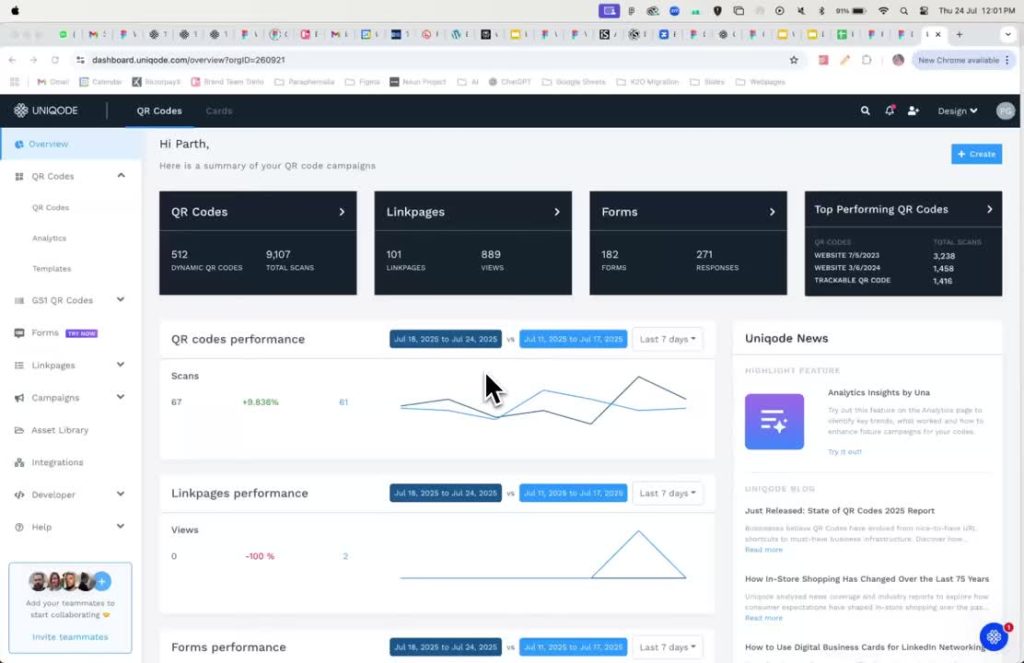
Those questions matter because QR code management gets messy fast once there are multiple campaigns in flight.
Your First Workflow Walkthrough
The easiest first workflow is a website QR code or a landing page QR code. The official features page says Uniqode supports website links, landing pages, PDF QR codes, forms, app download flows, social media, menus, and more.
If I were teaching a beginner, I would start with a simple website code:
- Pick the campaign goal.
- Paste the destination URL.
- Add the brand logo and colors.
- Choose a frame or CTA like “Scan Me” or “Buy Now.”
- Download the code in the right format.
- Scan it on two different phones.
- Check the landing page speed and mobile experience.
That sounds basic, but it is the difference between a QR campaign that gets ignored and one that actually gets used.
If you are building your first real QR workflow, start with Uniqode here and run a single test campaign before you design anything for print.
Best Practices For New Users
The official feature set makes a few best practices obvious.
First, use dynamic QR codes when you expect the destination to change later. The feature page emphasizes editable and trackable QR codes, which means you do not have to reprint them every time the URL changes.
Second, make the code visually clean. Uniqode supports colors, shapes, logos, backgrounds, and frames, but that does not mean you should make the design too busy. QR scanning still depends on clarity.
Third, use analytics on purpose. The platform supports scan tracking, device insights, Google Analytics, Meta Pixel, and retargeting integrations. That is powerful, but only if you know what question you are trying to answer.
Fourth, think in campaigns, not random codes. Labels, teams, transfer tools, and asset libraries are there to keep the whole thing organized.
Common Beginner Mistakes
The biggest beginner mistake is treating a QR code like a throwaway image. That usually leads to poor placement, weak contrast, or no tracking at all.
Another common mistake is using static code for something that will probably change later. If you are linking to a promotion, a seasonal page, or an evolving destination, a dynamic code is usually the better move.
A third mistake is skipping the mobile test. QR codes live and die by scan speed and landing page usability. If the code works but the page is clunky, the campaign still fails.
The fourth mistake is not choosing the right format for download. Uniqode supports PNG, JPG, PDF, SVG, and EPS, which means beginners can accidentally choose the wrong asset type for print or digital use if they do not think ahead.
Advanced Beginner Tools Worth Knowing
Even though this is a beginner’s guide, Uniqode has a few tools that are worth knowing early.
The official page supports integrations with Zapier, Make, Workato, Google Sheets, Slack, Canva, Google Analytics, Meta Pixel, and Google Ads. That means your QR campaigns can connect to the rest of your stack once you outgrow manual setup.
It also offers API access, bulk capabilities, teams, multiple users, asset library support, custom access, template lock, custom domain, and whitelabeling. Beginners do not need all of that on day one, but it is useful to know the platform will not force a migration later.
That is the real advantage of starting with a stronger platform. You are not just making one code. You are building a workflow that can grow.
Pricing In Context
Uniqode’s pricing page shows that the platform has a free option for static QR codes and paid plans for dynamic features. The pricing information on the site also shows plans starting at $9/month for the Essential tier and $49/month for Core, with higher tiers like Plus, Business+, and Enterprise for larger teams or custom use cases.
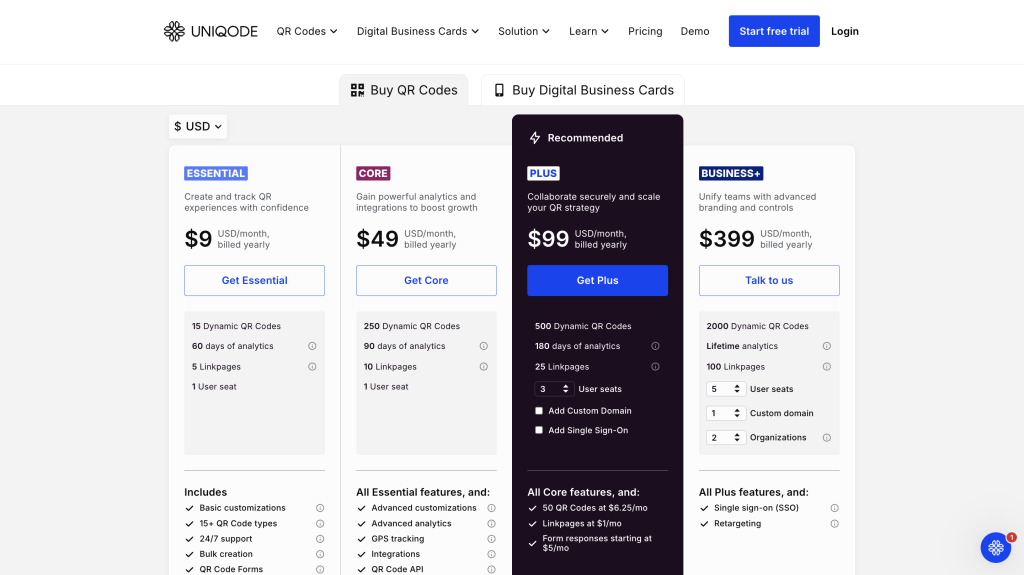
The pricing page also notes a 14-day free trial and says dynamic QR code limits depend on the plan. That makes the product easy to test before you commit.
For beginners, the main point is simple: if you only need a static code, you can start lightly. If you want tracking, editing, or campaign management, you should expect to step into the paid QR code plan family.
If you want to see that difference in action, start with Uniqode here and compare a free static code against a dynamic campaign you actually plan to run.
Real-World Example
Imagine a small business printing a flyer for a seasonal event. A static QR code would work if the page never changes. But a dynamic QR code is much safer if the landing page might evolve or the campaign needs tracking later.
With Uniqode, the team can create the code, brand it with the event colors, add a clear CTA, and monitor scans afterward. If the landing page changes, they can update the destination without reprinting the flyer.
That is a tiny example, but it captures the entire appeal of the platform. It saves you from redoing physical materials every time the digital side changes.
Support Resources
Uniqode’s own help center and feature pages are a good support starting point because the product surface area is broad. There are docs for QR code types, scan limits, plan switching, reactivation, pricing, and general FAQs.
For beginners, that means you are not forced to guess your way through a workflow. If you need to understand whether a code is static or dynamic, whether it can be edited later, or what happens after a free trial ends, the official help docs answer those questions directly.
That is reassuring, especially if you are setting up QR code campaigns for the first time and do not want surprises after the code is already printed.
Verdict
Uniqode is one of the better beginner-friendly QR code platforms because it gives you room to start small and grow into more serious campaign management. The feature set is broad, but the basic workflow is still easy to understand: create, customize, track, and manage.
The smartest way to begin is with one small campaign and one clear goal. Once that works, you can move into teams, analytics, bulk generation, and integrations without changing platforms.
If that sounds like the setup you want, start with Uniqode here and use the first campaign as your test case before you build out the rest of the system.
FAQ
What is Uniqode best for?
Uniqode is best for dynamic QR codes, branded campaigns, analytics, integrations, and scalable QR management.
Can beginners use Uniqode?
Yes. The setup is simple enough for beginners, especially if you start with one website QR code or one landing page campaign.
Does Uniqode offer a free option?
Yes. The pricing page says static QR codes are free, and it also offers a 14-day free trial for the platform.
What should I create first?
Start with one simple dynamic QR code, test it on a phone, and make sure the landing page experience is clean before you print anything.
Does Uniqode support team workflows?
Yes. The feature page includes teams, multiple users, an asset library, labels, custom access, template lock, and QR code transfer.