

Quick Verdict :
Hubstaff is a strong fit if your team needs time tracking plus productivity visibility instead of a lightweight timer that disappears the moment work gets messy. The official Hubstaff pages position the product around time tracking, timesheets, activity levels, app and URL tracking, screenshots, invoices, budgets, reports, and location tracking.
That makes it useful for teams that need accountability, visibility, and payroll-friendly records in the same platform. It is especially compelling for remote teams, agencies, field teams, and software teams that want more than a basic stopwatch.
If you want to explore the platform while you read, start with Hubstaff here.
What Hubstaff Actually Is :
Hubstaff is best understood as a workforce tracking and productivity platform. The official support docs and product pages show a system that combines time tracking with activity signals, screenshots, app and URL monitoring, reporting, invoicing, and optional location tracking.
That combination matters because a lot of teams do not just need “hours.” They need to know where the hours went and whether the work matches the project plan.
Hubstaff’s support documentation also makes the device story very clear. It offers multiple time tracking apps across devices, including browser-based tracking for teams that do not want to install a full desktop app. That makes it flexible for teams with mixed environments.
The product is not trying to be a general-purpose project management suite. It is trying to give managers and operators the visibility layer that sits around the work itself.
If you need visibility on time and productivity, start with Hubstaff here and test the workflow with one real team before rolling it out more widely.
Pros And Cons :
Hubstaff has real strengths.
- It combines time tracking with activity data.
- It supports screenshots, app tracking, and URL tracking.
- It works across devices and includes a web timer.
- It has timesheets, invoices, and reporting built in.
- It supports location tracking for field teams.
- It has a clear add-on and plan structure for scaling.
There are also tradeoffs.
- The public pricing story is more plan-based than simple-card-based.
- Teams that only need a tiny timer may find it heavier than necessary.
- Screenshot and monitoring features can feel strict if your team wants maximum freedom.
- The best value comes when you actually use the reporting and accountability tools.
That is the key point. Hubstaff is not a tool you buy because you like the feature list. It is a tool you buy because you want operational visibility.
Feature Deep Dive :
1. Time Tracking –
Time tracking is the foundation. Hubstaff’s official pages describe it as a platform built for tracking work hours across devices and workflows. That includes desktop, browser, and mobile use cases.
2. Timesheets And Reporting –
The support docs show timesheets, scheduled reports, and deeper reporting as part of the system. That matters because timesheets are not just for payroll. They are also a way to catch missing time and project drift before it gets expensive.
3. Activity Levels And Screenshots –
Hubstaff also tracks activity levels and can capture screenshots. That is useful for teams that need a productivity signal, but it should be introduced carefully. Managers should explain the purpose clearly so the feature is seen as operational transparency, not surprise surveillance.
4. App And URL Tracking –
The support docs explicitly call out app and URL tracking. That makes it easier to understand what tools or sites consumed the workday. For agencies and software teams, this is often more useful than a simple timer because it gives context.
5. Invoicing And Payments –
The starter plan information shows client invoices and payments support. That makes Hubstaff more useful when time tracking feeds directly into billing or payroll.
6. Location Tracking –
The mobile app and location tracking documentation is especially valuable for field teams. It explains GPS tracking, route history, and time-stamped location visibility. The docs also note that location tracking is a paid add-on on Team plans and included on Enterprise at no extra cost.
If your team needs more than a timer, start with Hubstaff here and evaluate the activity and reporting features against your actual workflow.
How The Product Fits Different Teams :
Hubstaff is especially strong for a few common team types.
Remote Teams –
Remote teams need clarity on hours, activity, and project effort. Hubstaff gives them that visibility without forcing everyone into manual timesheet cleanup.
Agencies –
Agencies benefit from client invoices, budgets, and reporting because the product ties time to billing more directly.
Field Teams –
Field teams benefit from mobile tracking and location data, especially when work is happening outside a traditional office.
Software Teams –
Software and engineering teams can use the product pages that focus on developers to track coding hours, PR reviews, and budgeting.
The main thing all these teams share is the need for accountability without too much admin overhead.
Pricing Model :
Hubstaff’s public support docs show a plan system that is more detailed than a simple flat-price card.
The public materials confirm:
- Starter, Grow, Team, and Enterprise plan families.
- Monthly, quarterly, or annual billing packages.
- A 14-day premium trial on the plans documentation.
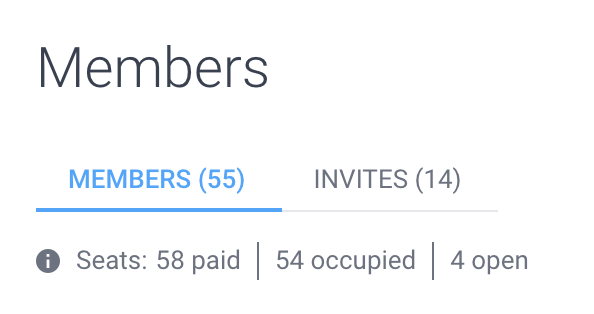
- A per-seat model on the support pages.
- A separate Hubstaff Tasks product with a per-user premium plan priced at
$5per user per month.
That means the correct pricing story is not a single sticker number. It is a usage model. You pay based on seats, plan level, and any add-ons you need.
That can be good or bad depending on your team. It is good if the product value scales with your headcount and you want flexibility. It is less good if you want one simple public price to compare at a glance.

If you want to evaluate the price model without guessing, start with Hubstaff here and look at the plan family that matches your team size and reporting needs.
Hidden Costs And Add-Ons :
The important add-on notes from the support docs are:
- Location tracking can be a paid add-on on Team plans.
- Location tracking is free on Enterprise.
- Hubstaff Tasks has its own premium pricing path.
That means the real monthly cost depends on what you want the platform to do.
If you only need core time tracking, the base plan may be enough. If you need location tracking, stronger reporting, or separate task management, the total cost will move up.
This is common in workforce software. The product starts with a simple time-tracking promise, then the real operational value arrives when you add the layers that match your team structure.
Buying Checklist :
Before buying Hubstaff, I would ask:
- Do we need screenshots and app tracking, or only basic hours?
- Do we need mobile location tracking for field staff?
- Do we want invoicing and payments tied to the same system?
- Do we want one tool for time, activity, and reporting?
- Will the team accept the monitoring model?
If those answers are yes, Hubstaff starts to look very practical.
If the answers are mostly no, you may be paying for more structure than you actually want.
Real-World Use Cases :
Hubstaff shines when time tracking has to connect to something real:
- Payroll.
- Client billing.
- Project profitability.
- Remote accountability.
- Field team location proof.
- Productivity review.
That combination is why the product tends to work best in teams that already care about operational discipline.
For example, a small agency can use Hubstaff to track billable hours, review activity, and generate invoices from the same system. A construction or field operations team can use mobile location tracking to verify work in the field. A software team can use screenshots and app tracking to understand where work time is going.
The point is not to watch people. The point is to understand work.
Implementation Notes :
Hubstaff works best when the rollout is intentional instead of vague.
That means you should decide a few things before the first day:
- Which teams need screenshots or app tracking.
- Which teams only need basic time tracking.
- Whether location tracking is required from the beginning.
- How invoices or payroll should be handled.
- How managers will explain the purpose of the monitoring features.
If the rollout is clean, Hubstaff feels like structure. If the rollout is sloppy, it can feel like friction.
That is why the product is strongest when the team already wants accountability and reporting. The software can then support the workflow instead of trying to force a workflow that nobody believes in.
What A Good Rollout Looks Like :
A good Hubstaff rollout usually starts with a single team or a single project type.
The reason is simple. If you turn on every tracking mode for every person at once, you make it harder to understand whether the process is working. Start smaller so you can see the signal.
For example:
- A remote delivery team might begin with time tracking, timesheets, and reporting.
- An agency might add screenshots and app tracking for only a subset of work.
- A field team might begin with mobile tracking and location rules.
Once the team understands why the product is there, adoption gets easier. People stop treating it like a mystery system and start treating it like a work record.
That distinction matters because Hubstaff works best when the team sees the value in the structure. If managers use it consistently and explain it well, the tool tends to feel practical instead of intrusive.
What To Watch In The First Month :
The first month usually tells you whether the rollout is healthy.
Watch for these signs:
- Are timesheets being completed consistently?
- Are managers actually reviewing the data?
- Are the screenshot and activity settings aligned with the team’s expectations?
- Are invoices and budgets making reporting easier?
- Is the data helping decisions, or just creating more admin work?
If the answers are mostly good, the product is doing its job. If the answer is mostly more admin, then the settings or the process probably need adjustment.
One practical sign of success is that managers stop chasing missing hours manually because the system is already giving them enough signal to act early.
When that happens, the software has become part of the operating rhythm instead of a separate admin chore that everyone resents.
That is the point where the product starts paying for itself in attention saved, not just hours logged.
Usually worth it.
Verdict :
Hubstaff is a strong review choice if your team needs visibility, reporting, and time accountability in one place. The product is not trying to be cute or lightweight. It is trying to help teams understand where hours go, how work is being tracked, and whether that effort turns into billable or measurable output.
That focus is what gives it value. The downside is that the product is only as useful as your willingness to use the reporting and accountability features properly.
If you want a workforce tracking platform that connects hours to real operational decisions, start with Hubstaff here and compare the plan family against the kind of visibility your team actually needs.
FAQ :
Does Hubstaff have a free trial?
Yes. The support pages say the premium plans include a 14-day trial.
Does Hubstaff show public pricing clearly?
Not as a single simple card on the support pages. The pricing model is plan-based and seat-based, so you should confirm the live selector.
Does Hubstaff support location tracking?
Yes. The mobile app documentation describes GPS tracking, and the support docs note it as a paid add-on on Team and free on Enterprise.
Does Hubstaff support browser tracking?
Yes. The app overview mentions a web timer for teams that do not want to install software.
Is Hubstaff only for remote teams?
No. It works for remote, agency, field, and software teams that need accountability and reporting.