

Why Features Matter Here
Office Timeline is not trying to be an all-purpose project management system. The official site is much more specific than that. It is positioned as a timeline and Gantt chart creator built to help people turn complicated project data into clear, eye-catching visuals that executives and stakeholders can actually understand.
That is an important distinction, because it tells you how to judge the product. You should not ask whether Office Timeline can replace your PM stack. You should ask whether it can make your project communication dramatically clearer and faster.
That is where the feature set matters. A tool like this wins or loses based on whether it helps people summarize, visualize, update, and present project information without turning every reporting cycle into a small personal crisis.
If you want to explore the product while you read, start with Office Timeline here.
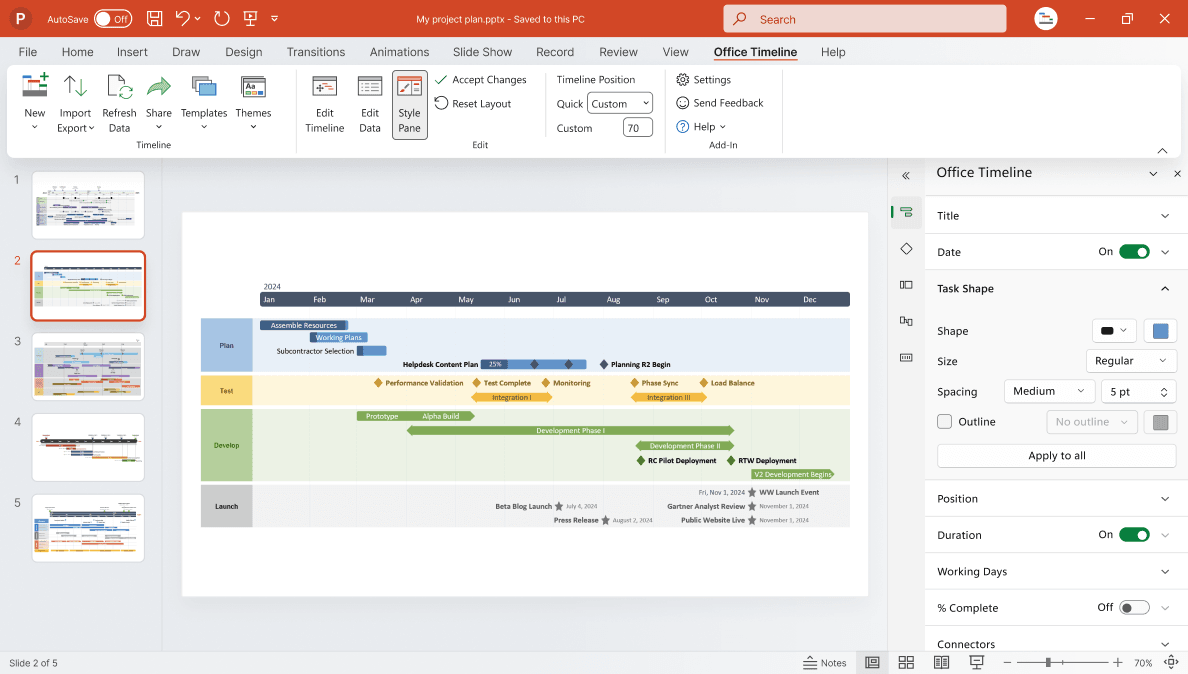
Feature 1: PowerPoint-Native Timeline Creation
This is still the core reason many people care about Office Timeline. The official homepage emphasizes that the add-in works right inside PowerPoint, and the pricing page calls out the Windows add-in specifically for users who want to build timelines from inside the tool they already know.
That matters more than it sounds. Plenty of teams are not looking for one more standalone interface. They are looking for a faster way to make presentation-ready visuals in the software they already use for reporting.
For project managers, consultants, and operations leads, that is a big advantage:
- Less time jumping between systems.
- Easier stakeholder-ready formatting.
- Better fit with organizations that already live in PowerPoint.
- Lower learning curve for presentation work.
Real talk: a lot of project communication still happens in slides, whether people love that or not. Office Timeline understands that reality better than many “future of work” tools that pretend decks no longer exist.
Feature 2: Browser-Based Online Tool
Office Timeline is not only a PowerPoint add-in. The official site also highlights an online tool that works in any web browser and lets users make timelines, Gantt charts, and roadmaps in the cloud.
This is one of the most practical features in the 2026 lineup because it expands the product beyond Windows-only PowerPoint users. The online tool is especially useful for:
- Mac users.
- Teams that want browser-based collaboration.
- People who need to share timeline work more flexibly.
- Buyers who want PowerPoint output without building everything inside PowerPoint.
The pricing page’s side-by-side comparison between the add-in and the online tool makes this easier to evaluate. The add-in leans into PowerPoint-native control. The online version leans into browser access, collaboration, and easier sharing.
That split is actually smart. It lets different teams choose the workflow that matches their environment instead of forcing one usage style on everyone.

Feature 3: Roadmaps, Gantt Charts, And Swimlanes
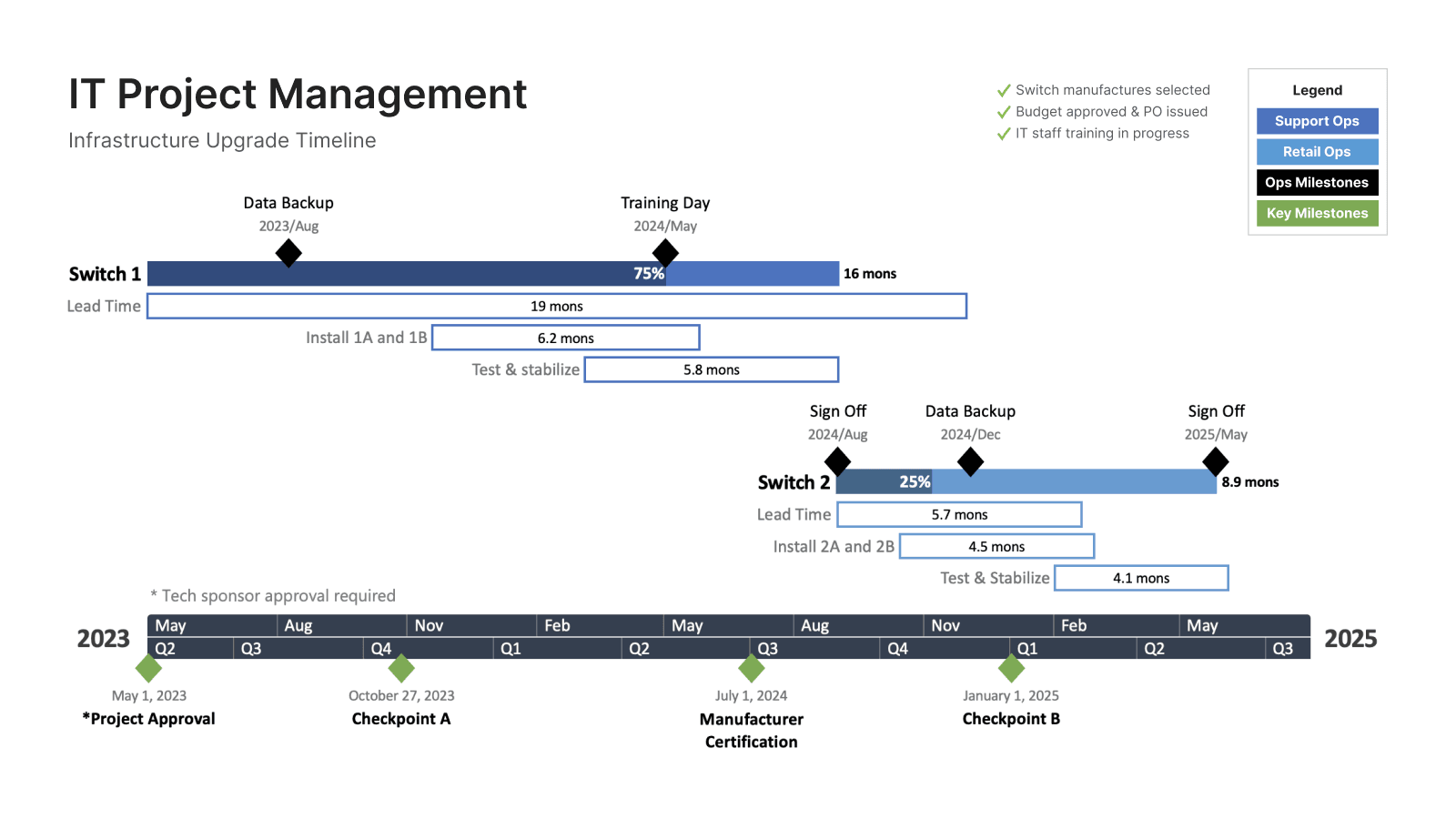
The official homepage repeatedly highlights timelines, Gantt charts, roadmaps, and swimlanes. That combination matters because project reporting is rarely one-dimensional. Sometimes a simple timeline works. Sometimes you need grouped workstreams. Sometimes you need dependencies and phased communication. Sometimes leadership wants a roadmap instead of a task-heavy chart.
Office Timeline’s feature set is strong because it is clearly built around those presentation formats.
The pricing page specifically calls out abilities like:
- Roadmaps and swimlane slides.
- Timelines and Gantt charts.
- Sub-swimlanes inside swimlanes in the add-in.
- Milestones on tasks.
- Dependencies and critical path in the add-in.
That gives the product more flexibility than a one-chart specialist.
For teams that report to different audiences, this matters a lot. Executives, clients, and internal delivery teams do not always need the same visual. A tool that can reshape the same project into different presentation styles is valuable.
Feature 4: Import And Refresh Integrations
One of the best official selling points is the integration story. Office Timeline highlights imports and refreshes from Excel, Microsoft Project, Smartsheet, Jira, and more. The online tool also adds Google Slides and Google Docs support in the pricing comparison.
This is arguably one of the highest-value features in the whole product.
Why? Because timeline tools become annoying fast when every update is manual. If the source data changes constantly, a reporting tool only stays useful when it can keep up.
That is why the import and refresh capabilities matter:
- They reduce manual rebuilding.
- They help maintain consistency between working plans and presentation visuals.
- They make recurring reporting less painful.
- They fit teams that already use planning systems instead of asking them to move everything into a new one.
If your reporting cycle currently involves exporting, rebuilding, reformatting, and apologizing for version drift, this feature alone can justify the product.
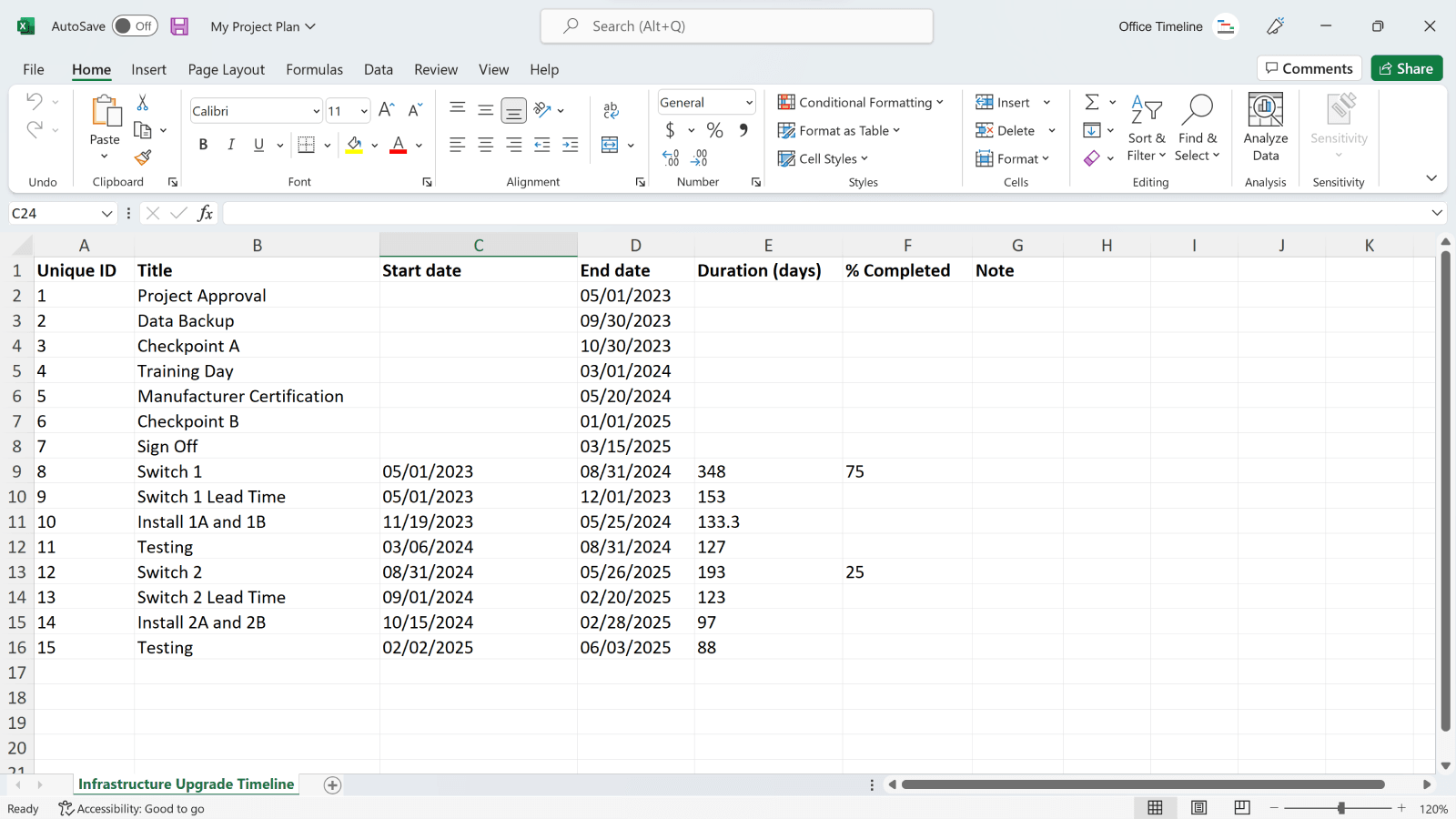
Feature 5: Easy Updating And Drag-And-Drop Editing
The homepage explicitly mentions changing dates with ease and an easy-to-use drag-and-drop editor. That sounds simple, but it is exactly the kind of feature that determines whether a tool becomes a daily asset or a quarterly regret.
Project timelines change. Constantly.
If updates are painful, the visuals become outdated. If visuals are outdated, nobody trusts them. If nobody trusts them, the tool becomes decoration.
Office Timeline’s update-oriented features help avoid that spiral. The pricing page also reinforces this with “update plans effortlessly with drag & drop” and timeline refresh capabilities.
That makes the product especially good for teams dealing with shifting dependencies, milestone changes, or executive decks that seem to need “just one small update” six minutes before the meeting.
Feature 6: Themes, Templates, And Standardization
The product pages also emphasize themes, templates, and standardized team templates. That is more important than it looks because a lot of project visuals fail not from bad data, but from inconsistent formatting and weak communication design.
A solid theme and template system helps teams:
- Stay on brand.
- Make reports easier to read.
- Standardize outputs across departments.
- Reduce the time spent beautifying slides manually.
This is especially useful for consulting teams, PMOs, program managers, and anyone who creates visuals for client-facing or leadership-facing review cycles.
If you want a reporting tool that saves time without making every slide look homemade, start with Office Timeline here and test one real status-review workflow with it.
Comparison To Alternatives
Office Timeline’s real competitive strength is not “most features overall.” It is feature fit for presentation-driven reporting.
Compared with broader project management tools, it is more specialized. Compared with generic diagram or chart tools, it is more specifically designed for timeline communication. Compared with tools that do not live comfortably with PowerPoint, it has a big workflow advantage for teams already locked into slide-based reporting.
That is why the feature evaluation should stay honest:
- Choose Office Timeline if you need strong timeline communication features.
- Look elsewhere if you want a full PM operating system.
- Appreciate it most if your deliverable is often a slide, not just a board or dashboard.
If you want to see whether that reporting-first fit is right for your team, start with Office Timeline here and compare one current executive deck against the output.
Verdict
Office Timeline’s best features in 2026 are the ones that directly reduce reporting pain: PowerPoint-native creation, browser-based flexibility, roadmaps and swimlanes, import-and-refresh integrations, drag-and-drop updating, and presentation-friendly themes and templates.
That feature stack makes it a smart fit for project managers, PMOs, consultants, and teams that need to communicate plans clearly to executives and clients without rebuilding visuals from scratch every week.
If that is your world, start with Office Timeline here and test it against your next actual reporting cycle instead of judging it only by screenshots.
That hands-on test is the fastest way to see whether the feature set saves real time or just looks tidy on the pricing page.
FAQ
What is Office Timeline best known for?
It is best known for helping teams create timelines, Gantt charts, roadmaps, and swimlane visuals quickly for PowerPoint or browser-based reporting.
Does Office Timeline work only in PowerPoint?
No. The official site also offers an online browser-based tool for creating and sharing timeline visuals.
What are the most useful Office Timeline features?
Its most useful features include PowerPoint integration, browser access, roadmap and swimlane creation, data import and refresh, drag-and-drop editing, and standardized themes and templates.
Is Office Timeline a project management tool?
Not in the broad PM-platform sense. It is more accurately a project reporting and visualization tool designed to make complex plans easier to communicate.